
How to apply blendshapes (face) presets?
-
Hi! I have a question about applying blendshape presets to avatars in Unity.
I have some blendshape presets in txt archives for my avatar, but I'm not sure how to apply them correctly in Unity. Do I need a specific tool or plugin to apply these presets, or is there a built-in way to do it?
Any guidance would be greatly appreciated
-
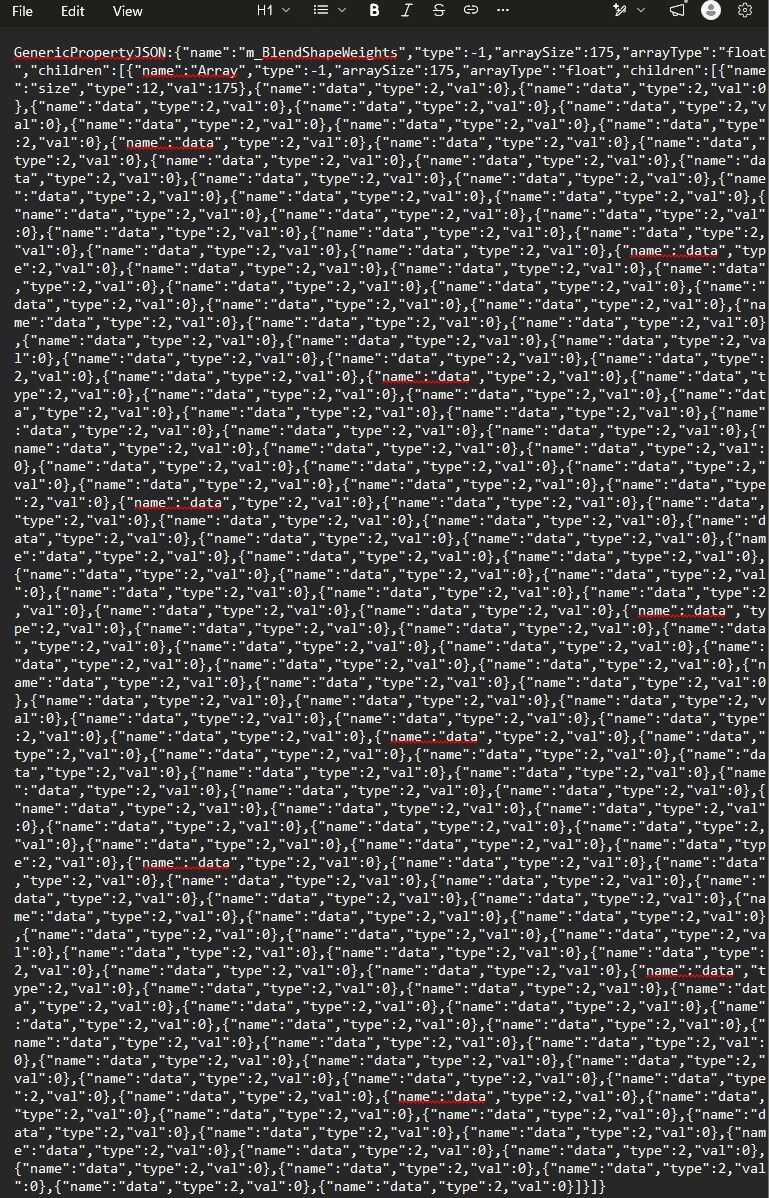
what do you mean by TXT archives? if it looks like what's below, you just copy everything in the .txt and paste it into the blendshapes for the face. any images you just copy it over by eye. animations, there's tools somewhere but i can't for the life of me manage to find them.
-
@localbozo Oh, I see! Yes, that's exactly what I mean. The presets I have come as .txt files with the blendshape names and their values.
However, when I select the face mesh in Unity and go to the blendshapes section, the option to paste the values is greyed out for me.
Are you using a specific tool or plugin to paste/import the values from the .txt file into the blendshapes? If so, could you tell me which one you're using?
Thanks!
-
Sorry if this is considered topic hijacking but I didn't want to make a 2nd topic on applying blendshape presets right after. Send me a strongly worded email if this isn't okay to do.
What if a blendshape asset comes as a single animation file? Milltina's Onesan face for example, comes as an .anim file.
I saw someone mention that you simply drag it onto the avatar but that didn't do anything besides creating a .controller file next to it and assigning the Animator component's controller to the file it created.The .anim file itself simply has a bunch of values changed for the face's blendshapes. I could, of course, manually change all the blendshapes but at this point I don't even want the face and only want to figure out how this works. Running on vitriol alone
I feel like I'm missing something obvious
-
@localbozo Oh, I see! Yes, that's exactly what I mean. The presets I have come as .txt files with the blendshape names and their values.
However, when I select the face mesh in Unity and go to the blendshapes section, the option to paste the values is greyed out for me.
Are you using a specific tool or plugin to paste/import the values from the .txt file into the blendshapes? If so, could you tell me which one you're using?
Thanks!
i'll just condense this into one reply.
first, for the text file option, it's odd that copying the content in the .txt isn't letting you paste. i've never had, nor seen that issue before. i might need to see it for myself how it's failing, or try it for myself. and no, i'm not using any specific tool, i've always just been able to export things to a text file like the one you've got and use it whenever i want to give someone else the blendshapes, or save them for later, then paste them in as blendshapes in the skinned mesh renderer.
for the animation, use this tool: https://booth.pm/ja/items/1258744
take the top option, it's free and up to date. you should be able to put that animation into it and set it as your avatar's default. don't worry about not knowing how to use blendshape packages with animations. it took me asking basically anyone i knew how to do it before i saw someone had a tool they used for it on a stream i was watching on discord.i think the normal method is replacing the "base" slot in the animator for the left and right hands? not sure, but it doesn't let you see the face while editing out of play mode, so it's pretty mediocre of a method if that is the actual way.
i won't be updating my shared assets often, as i'd rather people buy what i share and support the creators.
-
i'll just condense this into one reply.
first, for the text file option, it's odd that copying the content in the .txt isn't letting you paste. i've never had, nor seen that issue before. i might need to see it for myself how it's failing, or try it for myself. and no, i'm not using any specific tool, i've always just been able to export things to a text file like the one you've got and use it whenever i want to give someone else the blendshapes, or save them for later, then paste them in as blendshapes in the skinned mesh renderer.
for the animation, use this tool: https://booth.pm/ja/items/1258744
take the top option, it's free and up to date. you should be able to put that animation into it and set it as your avatar's default. don't worry about not knowing how to use blendshape packages with animations. it took me asking basically anyone i knew how to do it before i saw someone had a tool they used for it on a stream i was watching on discord.i think the normal method is replacing the "base" slot in the animator for the left and right hands? not sure, but it doesn't let you see the face while editing out of play mode, so it's pretty mediocre of a method if that is the actual way.
@LocalBozo Yup, that worked. Many thanks.
I'll save your reply in case I do ever sit down and try to make a unified writeup on how to apply blendshapes to avatars through various ways.
Unless a guide for it already exists and I'm just that bad at finessing the search function here
Hello! It looks like you're interested in this conversation, but you don't have an account yet.
Getting fed up of having to scroll through the same posts each visit? When you register for an account, you'll always come back to exactly where you were before, and choose to be notified of new replies (either via email, or push notification). You'll also be able to save bookmarks and upvote posts to show your appreciation to other community members.
With your input, this post could be even better 💗
Register Login