
How to export ripped avatar as fbx
-
Quick horrible tutorial in case someone wants to edit an ripped avatar. Sorry for my horrible english
Thought this might help someone. Also I won't guide on ripping avatars or turning them into working files, there are bunch of tutorials about that
-
Go to your project folder and open Packages folder. In the folder open the manifest file and at the bottom under "com.unity.modules.xr": "1.0.0", (or whatever it is in your file) paste "com.unity.formats.fbx": "5.1.1" It should add the fbx exporter
-
Now put your avatar prefab in the hierarchy and open it, it should show all the avatar model files, gogoloco (you can ignore it) and armature (name may be different depending on avatar). Select model files and armature
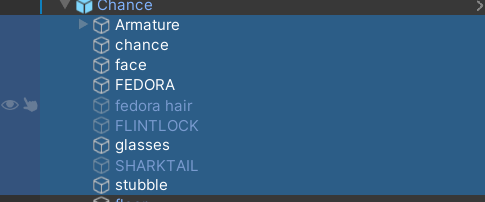 . Right click and select export to fbx, set the file name and then set export format to binary and don't touch anything else (atleast I don't), click export and it should now be an fbx file in the project file
 -
Use this addon https://forum.ripper.store/topic/19179/dl-better-fbx-importer-exporter-5-4-10?_=1766955377733 (I had issues with regular fbx importer) and import it into blender. The model now should have all weights and blendshapes
-
-
Alternatively you could use PMX Export tool, as it also features a neat GLB/GLTF exporter tool that has helped me in both models and whole maps/scenes
https://tstorage.info/wmc4t6q8gni4
I use Unity 2020 3.24f1 with this tool but I'm certain it works for later Unity versions too
VRChat to PMX dood
I don't play VRChat I play VRMMD lol
https://tstorage.info/users/nuigoftrdrk/821/TD's VRM 2 MMD Conversion�
-
Alternatively you could use PMX Export tool, as it also features a neat GLB/GLTF exporter tool that has helped me in both models and whole maps/scenes
https://tstorage.info/wmc4t6q8gni4
I use Unity 2020 3.24f1 with this tool but I'm certain it works for later Unity versions too
@TD
That works too, I had to export one avatar as glb/gltf because the fbx exporter removed some materials -
Small update, if bone names are fucked, uncheck Compatible Naming when exporting
-
Quick horrible tutorial in case someone wants to edit an ripped avatar. Sorry for my horrible english
Thought this might help someone. Also I won't guide on ripping avatars or turning them into working files, there are bunch of tutorials about that
-
Go to your project folder and open Packages folder. In the folder open the manifest file and at the bottom under "com.unity.modules.xr": "1.0.0", (or whatever it is in your file) paste "com.unity.formats.fbx": "5.1.1" It should add the fbx exporter
-
Now put your avatar prefab in the hierarchy and open it, it should show all the avatar model files, gogoloco (you can ignore it) and armature (name may be different depending on avatar). Select model files and armature
. Right click and select export to fbx, set the file name and then set export format to binary and don't touch anything else (atleast I don't), click export and it should now be an fbx file in the project file -
Use this addon https://forum.ripper.store/topic/19179/dl-better-fbx-importer-exporter-5-4-10?_=1766955377733 (I had issues with regular fbx importer) and import it into blender. The model now should have all weights and blendshapes
-
-
5 5687476 referenced this topic on



Hello! It looks like you're interested in this conversation, but you don't have an account yet.
Getting fed up of having to scroll through the same posts each visit? When you register for an account, you'll always come back to exactly where you were before, and choose to be notified of new replies (either via email, or push notification). You'll also be able to save bookmarks and upvote posts to show your appreciation to other community members.
With your input, this post could be even better 💗
Register Login