
🤝 COMMUNITY MALE AVATAR ASSET COLLECTION
-
 OTHER:
Other compatible assets.
01 - 10
01. 【両変換対応】狛乃用もちふぃった~対応データ

Supported Avatars:
DOWNLOAD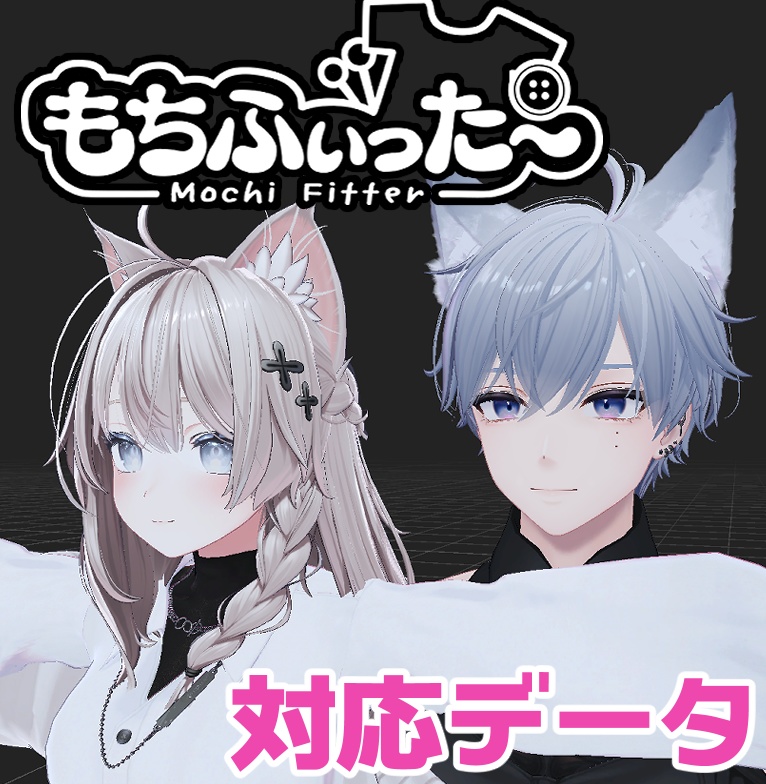
02. 【両変換対応】碼希-まき-用もちふぃった~対応データ
Supported Avatars: Sio / Mayo / Grus / Shinano / Chiffon / Lime / Chocolat / Milltina / Komano / Mafuyu / Misaki / Mao
DOWNLOAD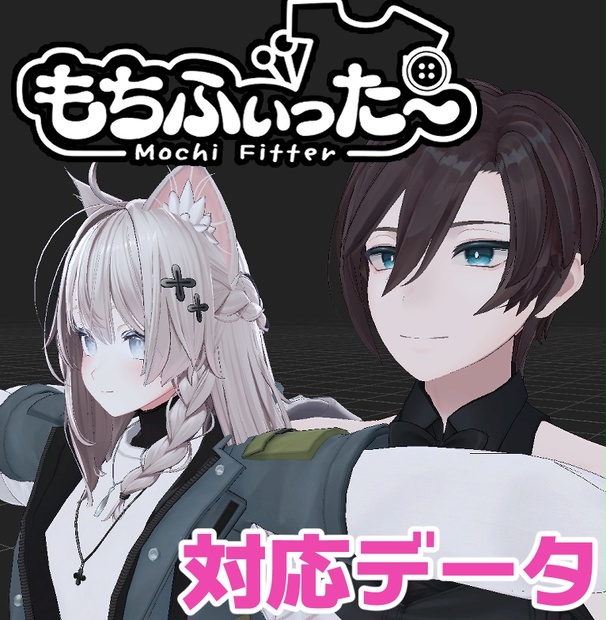
03. 【両変換対応】くうた用もちふぃった~対応データ
Supported Avatars: Kuuta
DOWNLOAD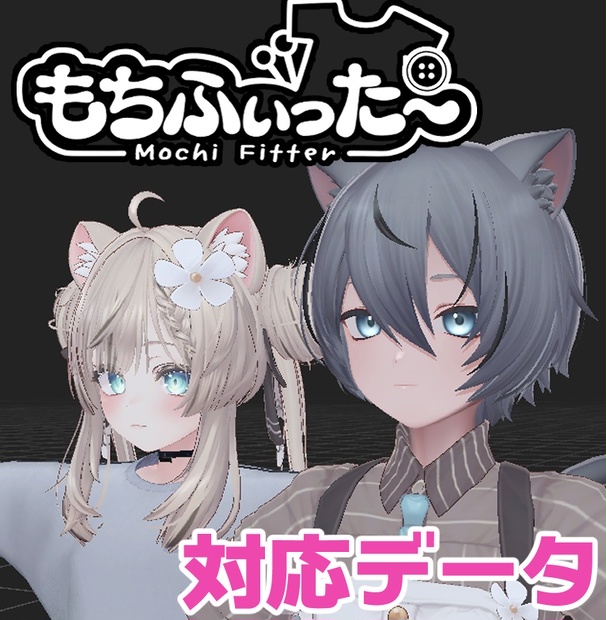
04. 【両変換対応】ドラゴニュート・ヴラウ用もちふぃった~対応データ
Supported Avatars:
DOWNLOAD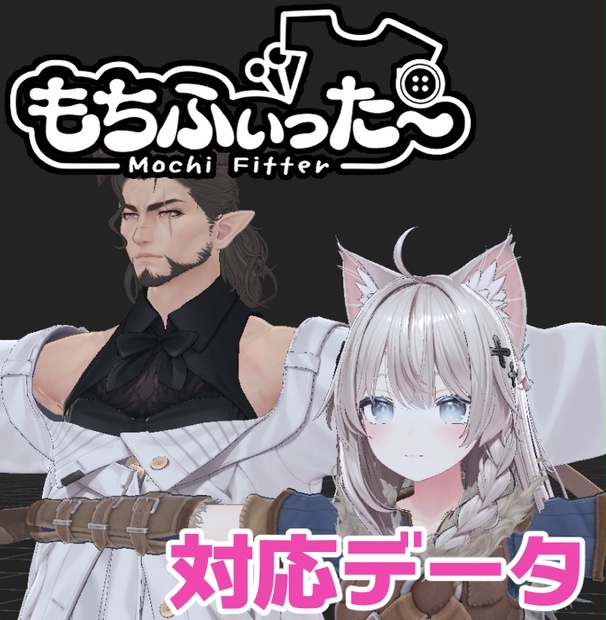
06. ADDHARD-Minase Shapekey 『 水瀬追加シェイプキー 』Supported languages 日本語 English 한국어
Supported Avatars:
DOWNLOAD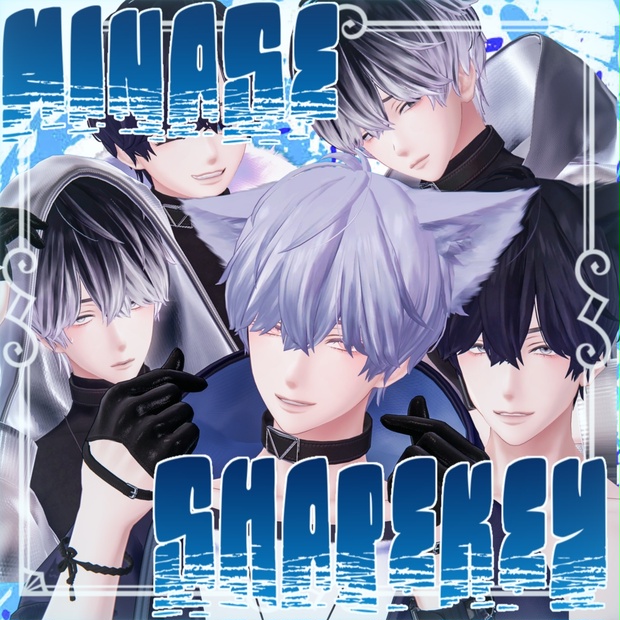
07. ADDHARD-Komano Shapekey Re:Build『 狛乃 追加シェイプキー 』Supported languages 日本語
Supported Avatars:
DOWNLOAD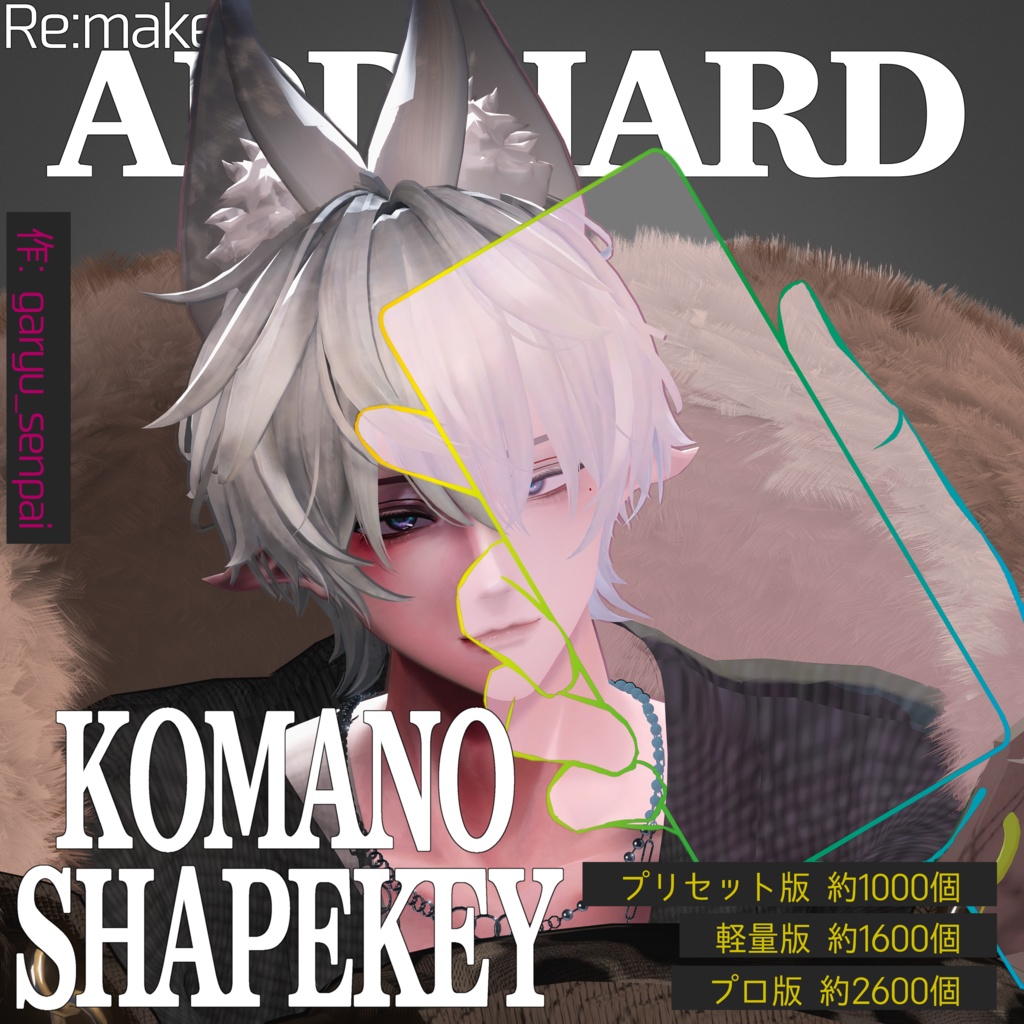
08. Shapekey Add-on for Kuuta // くうたに表情シェイプキー追加するやつ
Supported Avatars:
DOWNLOAD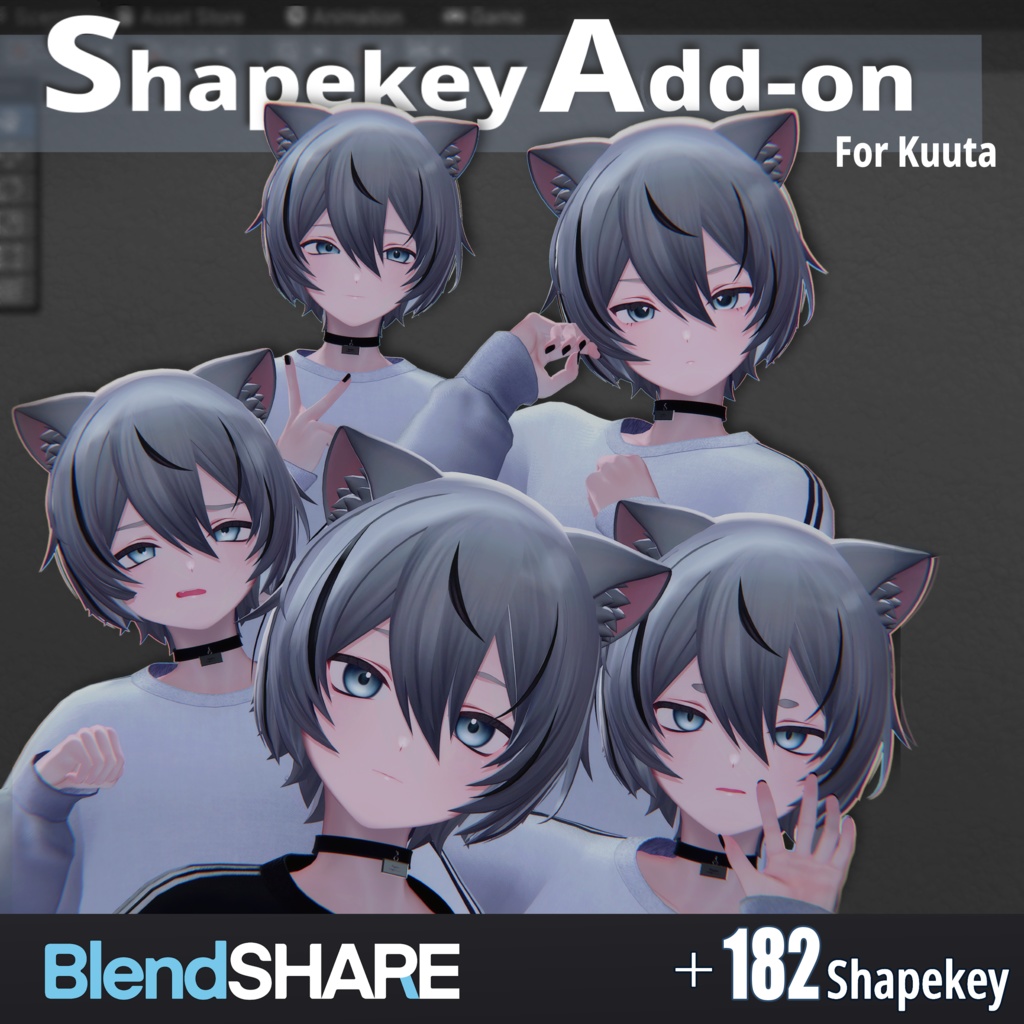
09. [ Alué(アルエ) ] +394 Face Shapekey
Supported Avatars:
DOWNLOAD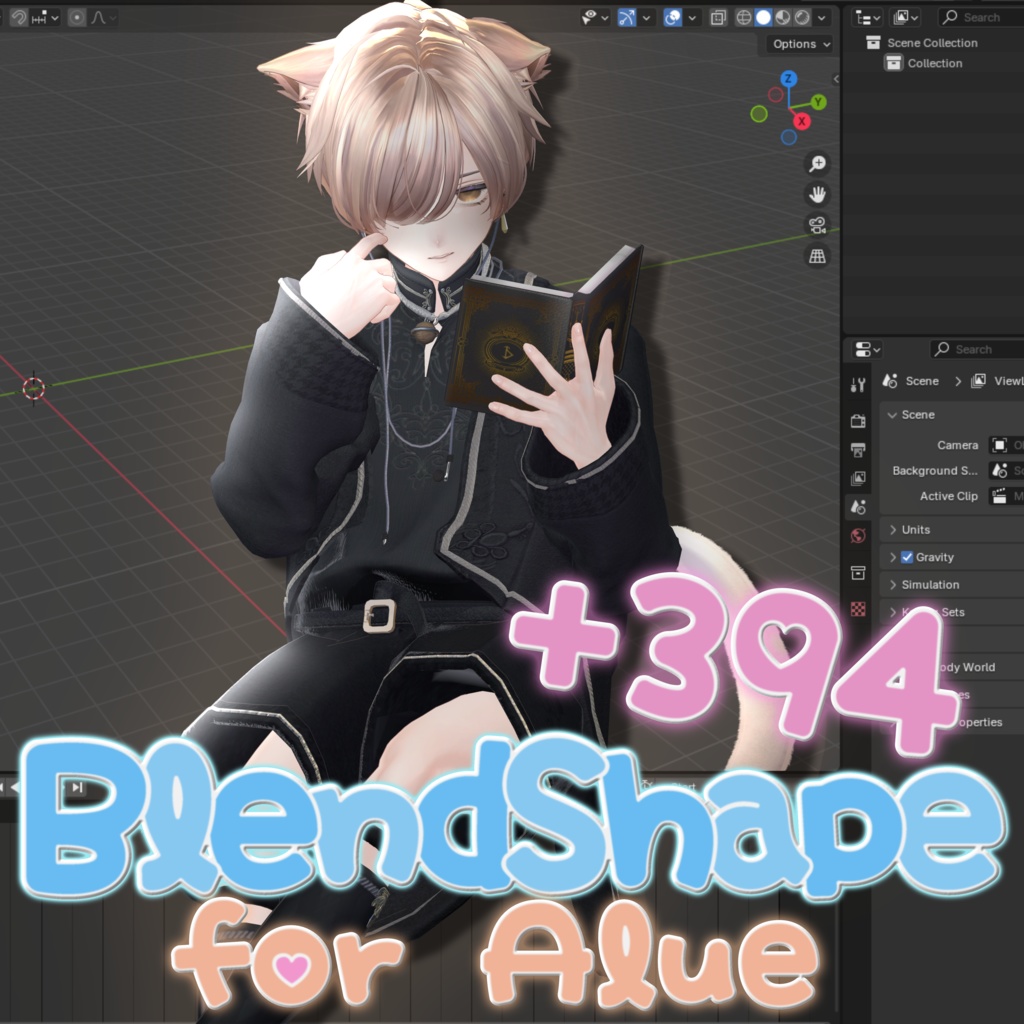
10. 【狛乃専用】 追加シェイプキー300種 /추가 블렌드 셰이프 300종 /300 Additional Blend Shapes
Supported Avatars:
[ Download Link (workupload.com))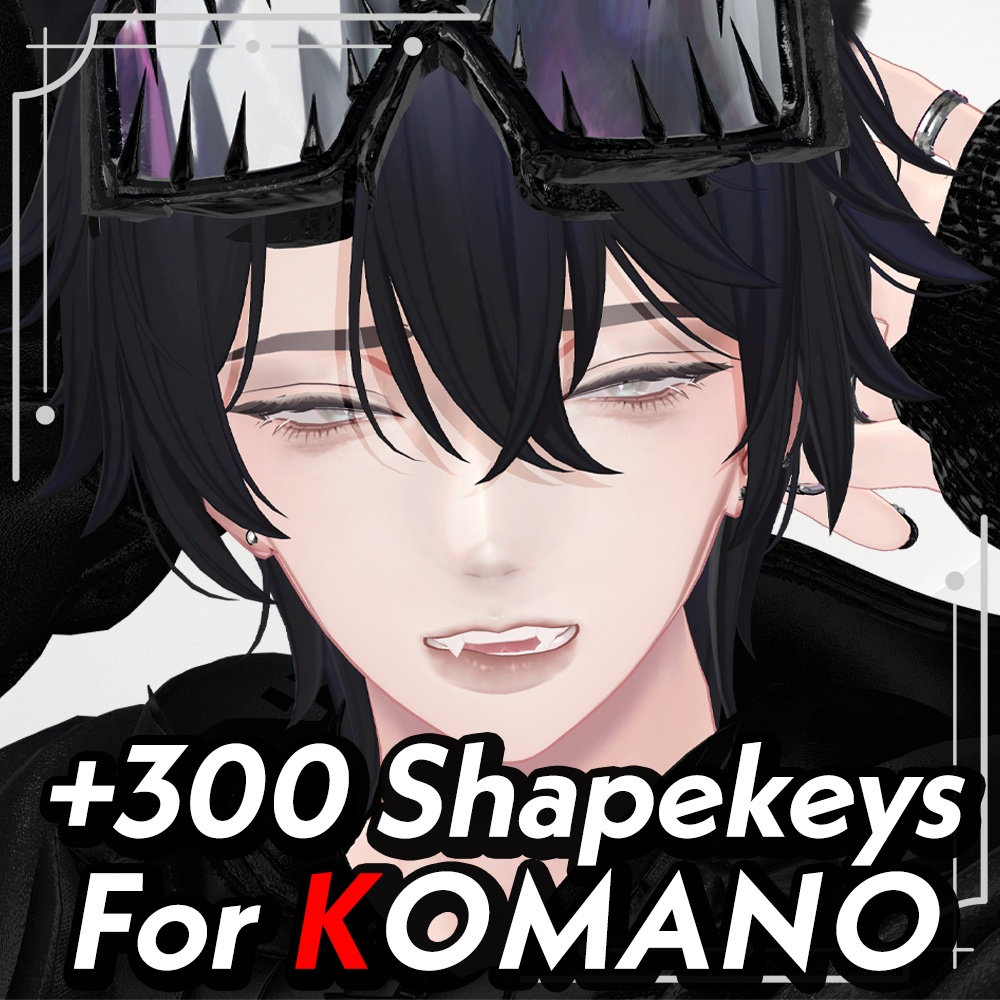
11 - 20
01. ADDHARD-こどもくうた-infantilization Kuuta +改変用シェイプキーとマスク付き
 ️
️
Supported Avatars:
DOWNLOAD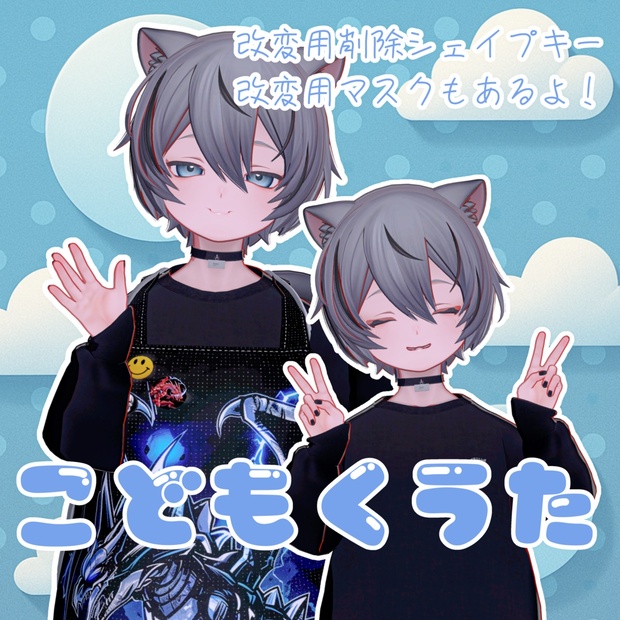
02. 【逆変換対応】水瀬用もちふぃった~変換プロファイル
Supported Avatars:
DOWNLOAD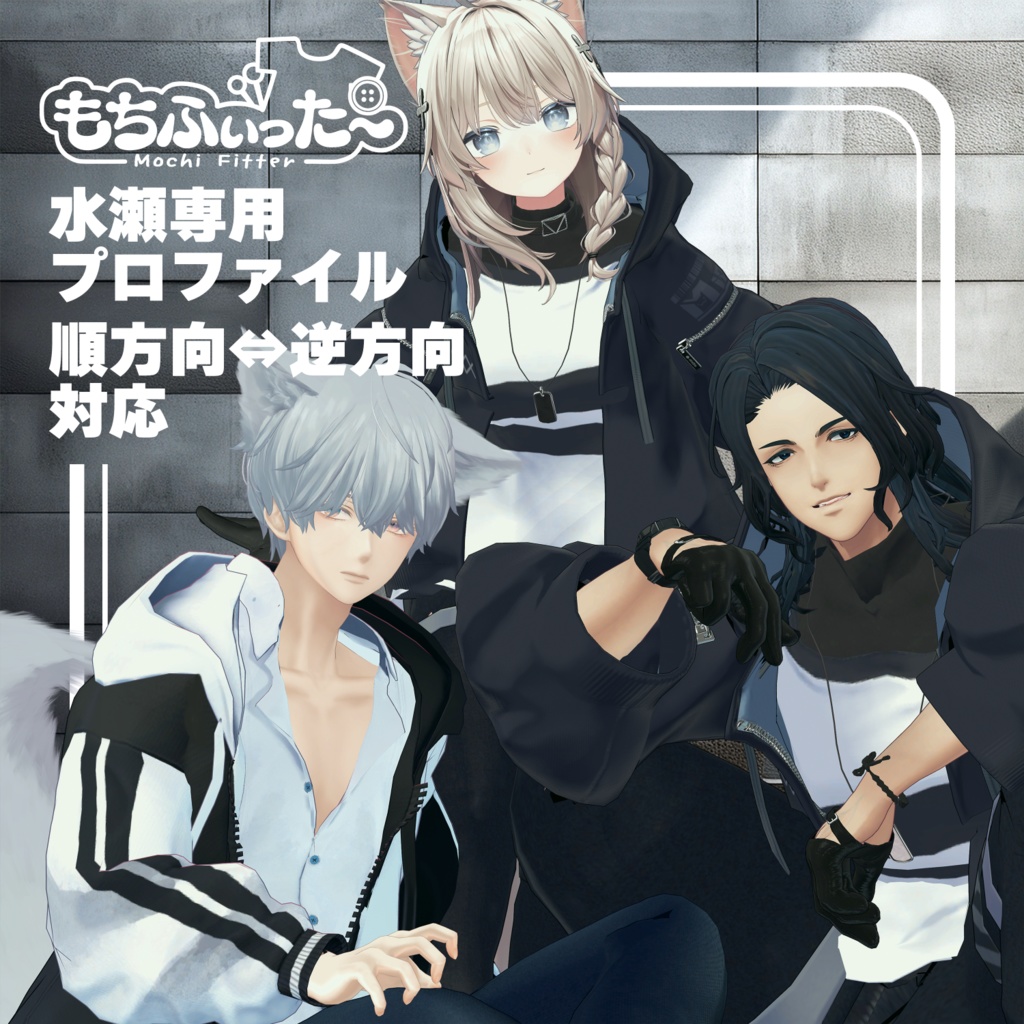
03. 【逆変換&衣装へのシェイプキー追加】彼方用もちふぃった~対応データ
Supported Avatars:
DOWNLOAD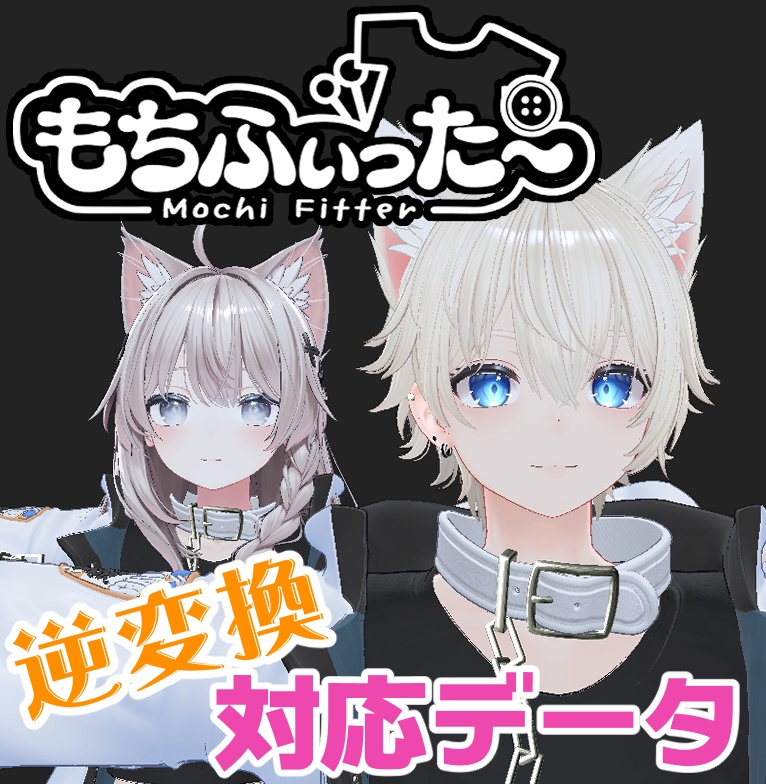
04. おちびちゃんズ Kanata ⁺Brother"2"
Supported Avatars:
DOWNLOAD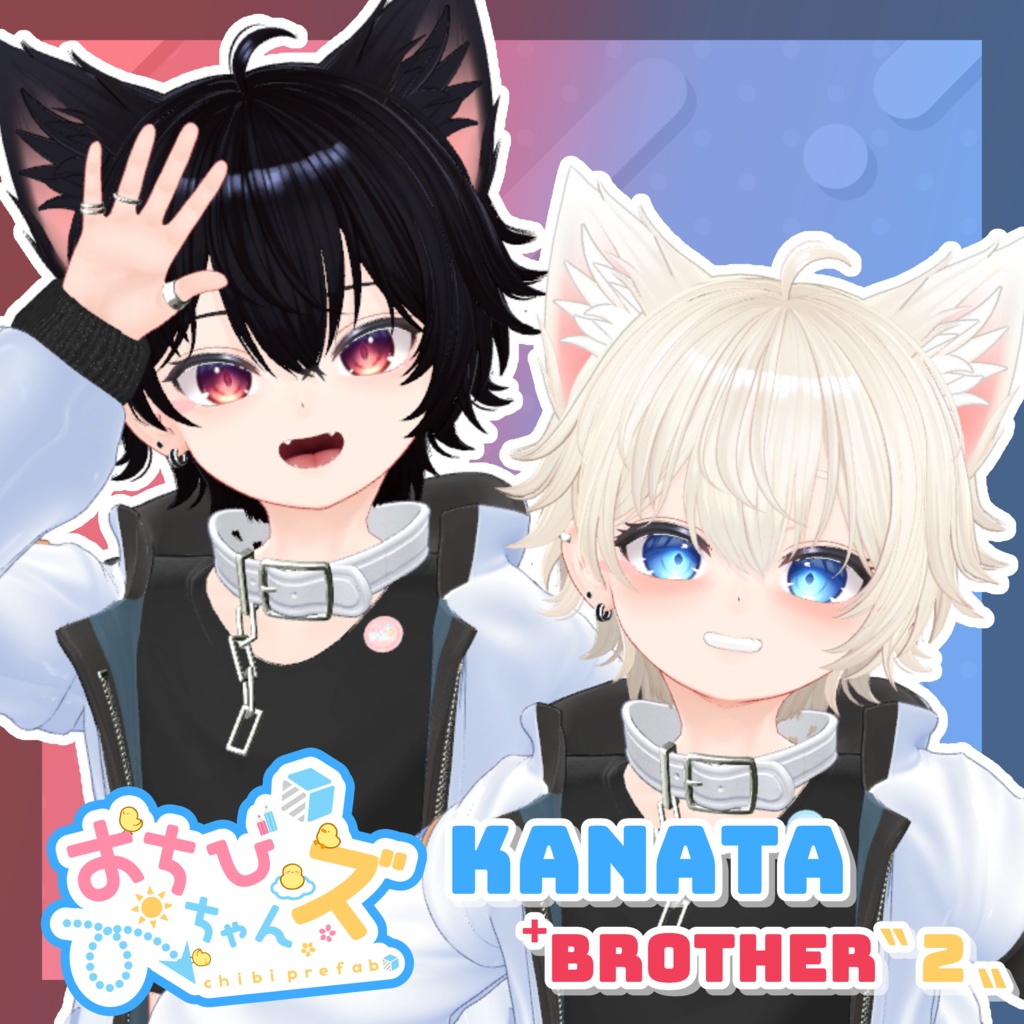
05. ADDHARD-Hanka Shapekey 『 斑霞追加シェイプキー 』Supported language 日本語
Supported Avatars:
DOWNLOAD FullPack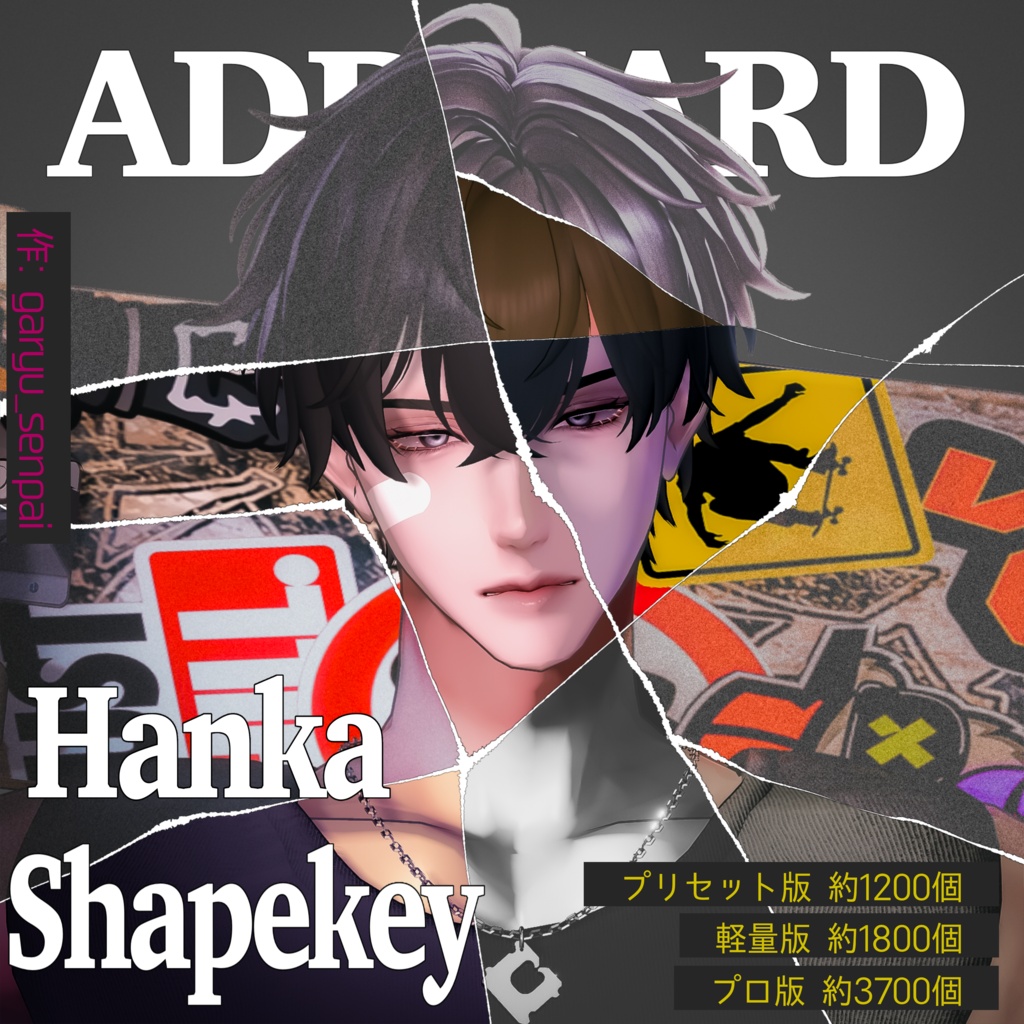
-
If you tell me your language, I'll translate the instructions for you.
If this English guide helped solve your issue, please let me know.
 Installation Guide
1. Import Required Files into Unity
First, import the Komano Ver.1.2 avatar into your Unity project.
Then drag and drop the following files into Unity:
- BlendShare-0.0.11.unitypackage
- Ver.2.0-XXX-ADDHARD-Komano Shapekey
2. Check the Generated Folder
Make sure a folder named !ADDHARD! has been created.
If the folder structure looks similar to the example below, everything has been imported correctly.
Toolbar: ADDTool

!ADDHARD!
├─ ADDTool
│   └─ ADDToolPackage
├─ Komano
├─ ADDTool
│   └─ Editor
├─ ADDTool.User
├─ ADDTool.Core
├─ Blend Share
│   ├─ Pro Version Komano-Shapekey Ver.2.0_BlendShare.asset
│   ├─ Light Version Komano-Shapekey Ver.2.0_BlendShare.asset
│   └─ Preset Version Komano-Shapekey Ver.2.0_BlendShare.asset
├─ Individual Parts
│   ├─ Pro Version
│   ├─ Light Version
│   └─ Preset Version
3. Apply ADDTool
After importing Ver.2.0-XXX-ADDHARD-Komano Shapekey, verify that a new menu called ADDTool appears in the Unity toolbar.
- Open ADDTool
- Click User (Komano Unlock)
- Complete the ownership verification
- Click Generate (Supports Komano v1.2)
After the process is complete, a new FBX and Prefab should be generated inside the !ADDHARD! folder.
 ️ Important: This package will not work with a standard Komano avatar until this step is completed.
4. Apply the BlendShapes
-
Select your preferred version:
- Pro Version
- Light Version
- Preset Version
-
In the Inspector, locate the BlendShare section.
-
Click:
Apply BlendShapes as New FBX
-
When prompted, enter a file name and save location.
(You can simply use the default settings if you prefer.) -
A new FBX will be generated automatically inside your Assets folder.
5. Replace the Meshes
Open the generated ADD Komano Prefab and select:
- Body (Face)
- Karada (Body)
Replace the meshes with the corresponding meshes from the newly generated FBX.
After replacing both meshes, the shapekeys should be applied successfully.
-
OTHER:
Other compatible assets.
01 - 10
01. 【両変換対応】狛乃用もちふぃった~対応データ
Supported Avatars:
DOWNLOAD
02. 【両変換対応】碼希-まき-用もちふぃった~対応データ
Supported Avatars: Sio / Mayo / Grus / Shinano / Chiffon / Lime / Chocolat / Milltina / Komano / Mafuyu / Misaki / Mao
DOWNLOAD
03. 【両変換対応】くうた用もちふぃった~対応データ
Supported Avatars: Kuuta
DOWNLOAD
04. 【両変換対応】ドラゴニュート・ヴラウ用もちふぃった~対応データ
Supported Avatars:
DOWNLOAD
06. ADDHARD-Minase Shapekey 『 水瀬追加シェイプキー 』Supported languages 日本語 English 한국어
Supported Avatars:
DOWNLOAD
07. ADDHARD-Komano Shapekey Re:Build『 狛乃 追加シェイプキー 』Supported languages 日本語
Supported Avatars:
DOWNLOAD
08. Shapekey Add-on for Kuuta // くうたに表情シェイプキー追加するやつ
Supported Avatars:
DOWNLOAD
09. [ Alué(アルエ) ] +394 Face Shapekey
Supported Avatars:
DOWNLOAD
10. 【狛乃専用】 追加シェイプキー300種 /추가 블렌드 셰이프 300종 /300 Additional Blend Shapes
Supported Avatars:
[ Download Link (workupload.com))
11 - 20
01. ADDHARD-こどもくうた-infantilization Kuuta +改変用シェイプキーとマスク付き
️
Supported Avatars:
DOWNLOAD
02. 【逆変換対応】水瀬用もちふぃった~変換プロファイル
Supported Avatars:
DOWNLOAD
03. 【逆変換&衣装へのシェイプキー追加】彼方用もちふぃった~対応データ
Supported Avatars:
DOWNLOAD
04. おちびちゃんズ Kanata ⁺Brother"2"
Supported Avatars:
DOWNLOAD
05. ADDHARD-Hanka Shapekey 『 斑霞追加シェイプキー 』Supported language 日本語
Supported Avatars:
DOWNLOAD FullPack -
-
Thank you for putting a male thread together too! Thought I would also let you know that 64 is password required.

-
-
-
-
-
-
If you tell me your language, I'll translate the instructions for you.
If this English guide helped solve your issue, please let me know.
Installation Guide1. Import Required Files into Unity
First, import the Komano Ver.1.2 avatar into your Unity project.
Then drag and drop the following files into Unity:
- BlendShare-0.0.11.unitypackage
- Ver.2.0-XXX-ADDHARD-Komano Shapekey
2. Check the Generated Folder
Make sure a folder named !ADDHARD! has been created.
If the folder structure looks similar to the example below, everything has been imported correctly.
Toolbar: ADDTool

!ADDHARD!
├─ ADDTool
│   └─ ADDToolPackage
├─ Komano
├─ ADDTool
│   └─ Editor
├─ ADDTool.User
├─ ADDTool.Core
├─ Blend Share
│   ├─ Pro Version Komano-Shapekey Ver.2.0_BlendShare.asset
│   ├─ Light Version Komano-Shapekey Ver.2.0_BlendShare.asset
│   └─ Preset Version Komano-Shapekey Ver.2.0_BlendShare.asset
├─ Individual Parts
│   ├─ Pro Version
│   ├─ Light Version
│   └─ Preset Version
3. Apply ADDTool
After importing Ver.2.0-XXX-ADDHARD-Komano Shapekey, verify that a new menu called ADDTool appears in the Unity toolbar.
- Open ADDTool
- Click User (Komano Unlock)
- Complete the ownership verification
- Click Generate (Supports Komano v1.2)
After the process is complete, a new FBX and Prefab should be generated inside the !ADDHARD! folder.
️ Important: This package will not work with a standard Komano avatar until this step is completed.
4. Apply the BlendShapes
-
Select your preferred version:
- Pro Version
- Light Version
- Preset Version
-
In the Inspector, locate the BlendShare section.
-
Click:
Apply BlendShapes as New FBX
-
When prompted, enter a file name and save location.
(You can simply use the default settings if you prefer.) -
A new FBX will be generated automatically inside your Assets folder.
5. Replace the Meshes
Open the generated ADD Komano Prefab and select:
- Body (Face)
- Karada (Body)
Replace the meshes with the corresponding meshes from the newly generated FBX.
After replacing both meshes, the shapekeys should be applied successfully.
-
-
-
-
-
-
-
@anonberry The author frequently purges posts/links after 9-10 days, I'm assuming this is why it was removed.
-
-











Hello! It looks like you're interested in this conversation, but you don't have an account yet.
Getting fed up of having to scroll through the same posts each visit? When you register for an account, you'll always come back to exactly where you were before, and choose to be notified of new replies (either via email, or push notification). You'll also be able to save bookmarks and upvote posts to show your appreciation to other community members.
With your input, this post could be even better 💗
Register Login