
LF: How to gloss / match textures or materials for this Quest Gigi
-
Been feedlins with more avis as usual, trying my best to port em to both ends while they look acceptables, buuuts..
Left is PC, right is Quest / Android..
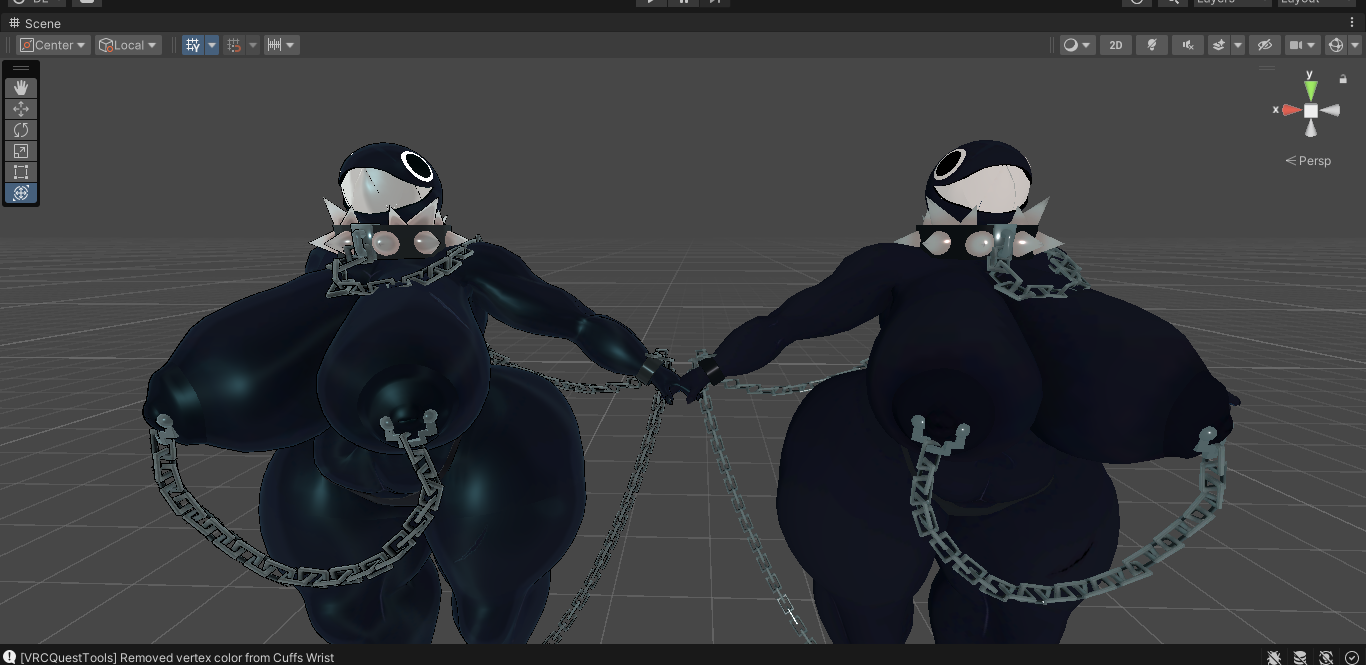
I've seen people pretty much make avis like Dotolie's look 1:1 with the PC versions, before they got sniped off public uploads befores..so any tips or assistance on how to get the gloss or materials to match up :3
-
Here are somethings I do to help make a quest side look a little better/closer to its pc side
Adding the same matcaps- You can see on the pc side of Gigi she has this like glossiness to her, that’s a matcap, in the material for the body, search for Matcap in the poi search, from there it should bring you to the matcaps, tap on the one that being used for her body, it should take you to a whole bundle of them, one in particular lights up, that’s the matcap that’s used on her body, open it up and save the matcap, then going to her quest side apply the matcap using Toon Standard and adjust to your liking!
Using Rim Lighting- Toon standard has a rim lighting feature that works on any material that is toon standard, go ahead and apply it but don’t make it super thick or bright if you want to match the pc Gigi, do like a grey-ish tone
Apply the normal- The normal(A bright blue texture) is usually just little details that you wouldn’t see without, if you think it would look better with go ahead and add it, if without then no need to!
Adding any emissions- Emissions, using toon standard, can be possible by finding the body emission map, it’s usually black with some white on it, apply the emission and use hue shift(emissions) to change the color or make it brighter
Bonus-Fixing/making any hue shift toggles quest compatible
If you know what you’re doing, and you want an almost one to one recreation, you can fix some animations or make new ones so that way they match. What I like to do is make a new animation for the hue shift, take a screen shot of the old animation to know which mesh needs the hue shift, make the new hue shift animation by following the screenshot we took and using toon standards hue shift or emission hue shift to create a new hue shift animation, just make sure when making a toggle for it that your parameters sync!
Tell me your favorite Jack Stauber songs, good conversation starter
-
Here are somethings I do to help make a quest side look a little better/closer to its pc side
Adding the same matcaps- You can see on the pc side of Gigi she has this like glossiness to her, that’s a matcap, in the material for the body, search for Matcap in the poi search, from there it should bring you to the matcaps, tap on the one that being used for her body, it should take you to a whole bundle of them, one in particular lights up, that’s the matcap that’s used on her body, open it up and save the matcap, then going to her quest side apply the matcap using Toon Standard and adjust to your liking!
Using Rim Lighting- Toon standard has a rim lighting feature that works on any material that is toon standard, go ahead and apply it but don’t make it super thick or bright if you want to match the pc Gigi, do like a grey-ish tone
Apply the normal- The normal(A bright blue texture) is usually just little details that you wouldn’t see without, if you think it would look better with go ahead and add it, if without then no need to!
Adding any emissions- Emissions, using toon standard, can be possible by finding the body emission map, it’s usually black with some white on it, apply the emission and use hue shift(emissions) to change the color or make it brighter
Bonus-Fixing/making any hue shift toggles quest compatible
If you know what you’re doing, and you want an almost one to one recreation, you can fix some animations or make new ones so that way they match. What I like to do is make a new animation for the hue shift, take a screen shot of the old animation to know which mesh needs the hue shift, make the new hue shift animation by following the screenshot we took and using toon standards hue shift or emission hue shift to create a new hue shift animation, just make sure when making a toggle for it that your parameters sync!
Tell me your favorite Jack Stauber songs, good conversation starter
-
 R Resu has marked this topic as solved on
-
I somehow forgots to provide the download link for the avatar entirely, fahh..
but after going through with the matcap texture copy (thru benny's response), it really did helps :3 thankiesif only I had these kinds of helping hands for my other posts and stuff, not to mention many others on ripperstore as well, chu suuper nifty @bennyworm
and I appreciate the tip as well, @kaisama21 :33

Hello! It looks like you're interested in this conversation, but you don't have an account yet.
Getting fed up of having to scroll through the same posts each visit? When you register for an account, you'll always come back to exactly where you were before, and choose to be notified of new replies (either via email, or push notification). You'll also be able to save bookmarks and upvote posts to show your appreciation to other community members.
With your input, this post could be even better 💗
Register Login