
LF: femboy mal0
-
i been seeing a LOT of femboy mal0s going around on vrchat and i was wondering if anyone had sum
if you do could you share please
-
You can check here and type in the name. There a few. Not sure EXACTLY of what you're looking for, but its a start.
-
-
-
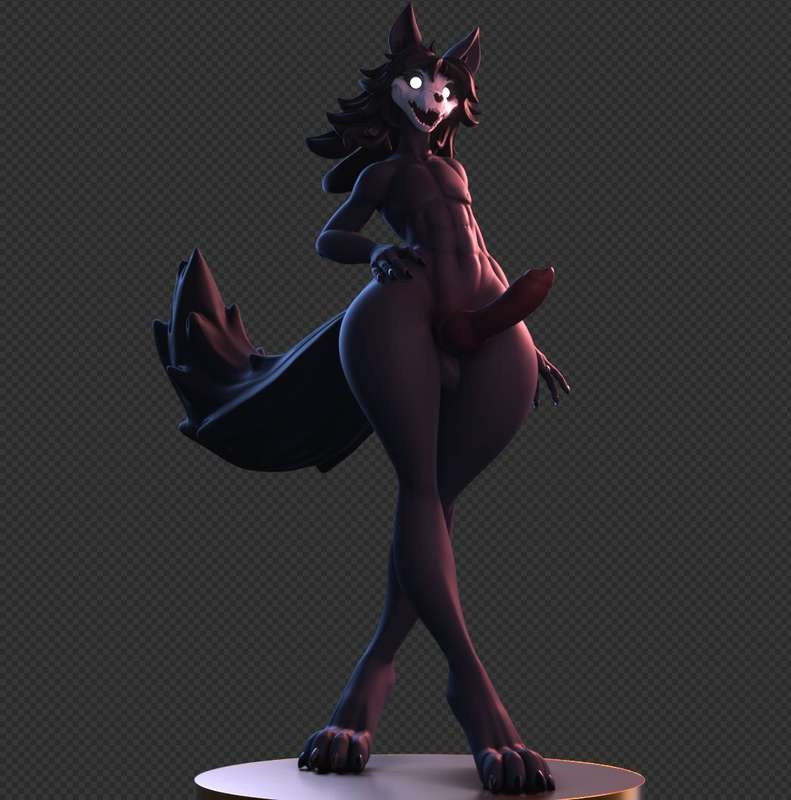
I FOUND THE FEMBOY MAL0 I NEED IS SOMETHING TO PORT IT INTO VRCHAT FOR ME
Top 500 Jerkmate player
-
I FOUND THE FEMBOY MAL0 I NEED IS SOMETHING TO PORT IT INTO VRCHAT FOR ME
@teknoeee
If you wanna port it yourself and it's a .blend file, try Blender.
If you're asking for someone to port it to vrc for you, you could just drop the file in the comments here and ask someone to port it and eventually someone will.- I rig up models
- I add clothing/assets to premade models
- Learning how to make models
- Can make VRC ports
- I teach people via YT
[I do NOT do trades]
:Feel free to message me, just don't be demanding.:
-
@teknoeee
If you wanna port it yourself and it's a .blend file, try Blender.
If you're asking for someone to port it to vrc for you, you could just drop the file in the comments here and ask someone to port it and eventually someone will.@ALilRotten https://kemono.su/boosty/user/da.nilkaz/post/9ea67cdc-ad86-44d1-8c26-9da37bec64ee
i did drop the file link for blender i would love to turn it into a vrchat avatar myself but idk how to
Top 500 Jerkmate player
-
@ALilRotten https://kemono.su/boosty/user/da.nilkaz/post/9ea67cdc-ad86-44d1-8c26-9da37bec64ee
i did drop the file link for blender i would love to turn it into a vrchat avatar myself but idk how to
@teknoeee
Hmm... I'll take a look at it and see if its possible.
Edit: Okay. I took a look at it. Yeah, its super ready to be ported into Unity.
The process is simple if you know what you're doing and what you want.My guess is that you want all the bells and whistles right?
- Toggles
- Visemes
- Expressions
- NSFW
- GoLoco
- Etc
Right?
If you're willing to learn I can help you out.
Some people are hands on learners. I am one as well, but here is the generic stuff.What to do first:
-
Go online and search GoLoco download and download the latest one. Its free
-
Go online and search for "Hai Blendshape Viewer" or "Hai Combo Gesture" it will be a whole package. Its free
-
Open Unity and Import what you need/want (Texture folder, GoLoco or VRCFury, Poiyomi or whatever you wanna use, Hai~, the usual stuff, the model's FBX)
-
Right click in the asset folder. Go to folder and click on that to make a new folder. Call this folder 'MATS' or 'Materials'
-
Once all of that is in and ready, open your model's FBX (pressing the arrow on the side in the assets or where ever you put the model) CTRL + Click on all the round things (Those are materials) select all of them and then RIGHT click and go down to where it says 'Extract from Prefab' if its grayed out, do it again, but maybe try 3 at a time or 4.
(You can also go into the mats folder, if you're missing textures, click on the mat with a missing texture, its usually white and search for the texture its missing. Sometimes models come without textures and they use the blender color nodes, so yeah, that happens sometimes. If its a solid color then you can just find something with a similar or exact color and go with that. Ex: white) -
When you click extract, it will ask where you want to put it. Click on the folder you made 'Mats' or 'Materials' and select it. Now your mats will be placed in side.
-
Now, click on your model's FBX. On the right side menu that pops up in 'Inspector' you will see the scaling like usual, below it is a small thing that says 'Select' click it. It will open up another menu. Go to the drop down menu that says 'Generic' and switch it to 'Humanoid'.
-
Once done, go to config. You will be brought to a weird looking place where you see a green person in the menu now. Check all the parts: Hips, legs, arms, neck, head, hands and make sure they're in their proper place. If not, click on the little circle next to the name of the select bone and search up the bone it needs to be.
-
Once you're done, scroll down and click on 'Apply' Then click 'Done'. Now you're back in the normal menu. Yay. Drag and drop the model's FBX into the LEFT menu where it says 'Hierarchy' If the model looks too big, click on it and scale it to 0.01 or 0.1 (However tall or small you want it to be).
-
Once you got your desired height, click on your model again and look at the RIGHT menu. Click on 'Add component' and search for 'Avatar Descriptor' This is where all your stuff goes. Visemes, expressions, menus, parameters, goloco, eye movement, etc.
That stuff right there is the easy part.
Now for Visemes:-
This is super duper easy. Go to where it says 'Visemes' in the descriptor and click on 'Auto detect' sometimes it will work properly if the person who made the model included everything it needed, if only a few are shown, that's okay. Just put what's already there in the blanks in the areas you think they could go in. Ex: E and Eh could used 'E' or 'I'
-
Now look above the visemes and you will see a thing that says 'View'. Click 'Edit' and you will see a small white ball somewhere close to your avatar. This is where your view will be. You can adjust it how ever you like, but you should put it right between the eyes and on the bridge of the model's nose. Just not inside the head.
-
Go down to where it says 'Eye movement' and click on it. You can now select the eyes you wanna use. In this case it would be 'Eye.L' and 'Eye.R' if they're listed like that. Everyone has their own way of doing things.
Click edit on each thing and adjust the eyes accordingly to fit how you want them. (Front) (Side left) (Side right) (Down) and then when it comes to blinking. Click on 'Blendshapes' and find the one that says 'Blinking'
Congrats, you just got done with the most basic thing for avatars and you haven't even done Phys bones, animations, toggles, facial expressions, rotation constraints (if needed), or even Phys bone colliders.
(That's all I'm gonna list for now because there is a LOT for the extra stuff and this is just the start here.)
If you wish to learn there are tutorials out there you can look into.- I rig up models
- I add clothing/assets to premade models
- Learning how to make models
- Can make VRC ports
- I teach people via YT
[I do NOT do trades]
:Feel free to message me, just don't be demanding.:
-
@teknoeee
Hmm... I'll take a look at it and see if its possible.
Edit: Okay. I took a look at it. Yeah, its super ready to be ported into Unity.
The process is simple if you know what you're doing and what you want.My guess is that you want all the bells and whistles right?
- Toggles
- Visemes
- Expressions
- NSFW
- GoLoco
- Etc
Right?
If you're willing to learn I can help you out.
Some people are hands on learners. I am one as well, but here is the generic stuff.What to do first:
-
Go online and search GoLoco download and download the latest one. Its free
-
Go online and search for "Hai Blendshape Viewer" or "Hai Combo Gesture" it will be a whole package. Its free
-
Open Unity and Import what you need/want (Texture folder, GoLoco or VRCFury, Poiyomi or whatever you wanna use, Hai~, the usual stuff, the model's FBX)
-
Right click in the asset folder. Go to folder and click on that to make a new folder. Call this folder 'MATS' or 'Materials'
-
Once all of that is in and ready, open your model's FBX (pressing the arrow on the side in the assets or where ever you put the model) CTRL + Click on all the round things (Those are materials) select all of them and then RIGHT click and go down to where it says 'Extract from Prefab' if its grayed out, do it again, but maybe try 3 at a time or 4.
(You can also go into the mats folder, if you're missing textures, click on the mat with a missing texture, its usually white and search for the texture its missing. Sometimes models come without textures and they use the blender color nodes, so yeah, that happens sometimes. If its a solid color then you can just find something with a similar or exact color and go with that. Ex: white) -
When you click extract, it will ask where you want to put it. Click on the folder you made 'Mats' or 'Materials' and select it. Now your mats will be placed in side.
-
Now, click on your model's FBX. On the right side menu that pops up in 'Inspector' you will see the scaling like usual, below it is a small thing that says 'Select' click it. It will open up another menu. Go to the drop down menu that says 'Generic' and switch it to 'Humanoid'.
-
Once done, go to config. You will be brought to a weird looking place where you see a green person in the menu now. Check all the parts: Hips, legs, arms, neck, head, hands and make sure they're in their proper place. If not, click on the little circle next to the name of the select bone and search up the bone it needs to be.
-
Once you're done, scroll down and click on 'Apply' Then click 'Done'. Now you're back in the normal menu. Yay. Drag and drop the model's FBX into the LEFT menu where it says 'Hierarchy' If the model looks too big, click on it and scale it to 0.01 or 0.1 (However tall or small you want it to be).
-
Once you got your desired height, click on your model again and look at the RIGHT menu. Click on 'Add component' and search for 'Avatar Descriptor' This is where all your stuff goes. Visemes, expressions, menus, parameters, goloco, eye movement, etc.
That stuff right there is the easy part.
Now for Visemes:-
This is super duper easy. Go to where it says 'Visemes' in the descriptor and click on 'Auto detect' sometimes it will work properly if the person who made the model included everything it needed, if only a few are shown, that's okay. Just put what's already there in the blanks in the areas you think they could go in. Ex: E and Eh could used 'E' or 'I'
-
Now look above the visemes and you will see a thing that says 'View'. Click 'Edit' and you will see a small white ball somewhere close to your avatar. This is where your view will be. You can adjust it how ever you like, but you should put it right between the eyes and on the bridge of the model's nose. Just not inside the head.
-
Go down to where it says 'Eye movement' and click on it. You can now select the eyes you wanna use. In this case it would be 'Eye.L' and 'Eye.R' if they're listed like that. Everyone has their own way of doing things.
Click edit on each thing and adjust the eyes accordingly to fit how you want them. (Front) (Side left) (Side right) (Down) and then when it comes to blinking. Click on 'Blendshapes' and find the one that says 'Blinking'
Congrats, you just got done with the most basic thing for avatars and you haven't even done Phys bones, animations, toggles, facial expressions, rotation constraints (if needed), or even Phys bone colliders.
(That's all I'm gonna list for now because there is a LOT for the extra stuff and this is just the start here.)
If you wish to learn there are tutorials out there you can look into.@ALilRotten so i know how to do most of this it seems very easy but i got 2 big dockey issues
number one is when i do fbx and make it Humanoid config to fix the broken bones in the gray version of the hierarchy its just a full MESS there is bones in there that do nothing in the hierarchy when you move them and the ones that do work are not linked right like when try to turn a random snake model into a working vrchat model it had bones on the legs to make it longer that where not even moveable bones on the snake avatar and the feets toes would not even be apart of the food then i would have to take like a HOUR to re rig the bones in the normal hierarchy in unity then make a whole new fbx then try to make a Humanoid rig from that and it still breaks 99% of the time
and issue 2 is it just breaks for hella no reason for me maybe because my unity project has a lot of bullshit in side but when i do stuff like rename mouth bone to Jaw bone in the main hierarchy it breaks the Humanoid rig or the Humanoid rig would break for no reason when working in unity and it would Humanoid rig would upload but soon as i get in vrchat i start T-posen and i can't move for a damn
so my man issue is just getting the Humanoid part of the fbx's rig to work really i feel like i can find a work around for the other stuff its just that the rig is really shitty and never works for me
-
once i yk figure out how to simplify the Humanoid in the rig in the hierarchy for the fbx or not make it break while working on the avatar i feel like i can learn how to turn 3D models into avatars in more simple terms
Top 500 Jerkmate player
-
once i yk figure out how to simplify the Humanoid in the rig in the hierarchy for the fbx or not make it break while working on the avatar i feel like i can learn how to turn 3D models into avatars in more simple terms
@teknoeee
Oh boy, it's one of those ones. Rigify models. Yeah, those are a nightmare to deal with.
Personally what I do is I either make a whole new rig. Just make the skeleton, hips, legs, spine, chest, arms, neck, head.
Things you understand. Then create the parts you want physbones on.
Select the model, select your new rig. Ctrl + p and click on "Parent with empty weights"Go to the model. Find the bones that are weight painted that you want on your new rig and rename them to your new rig's bones.
That's one way to do it.
Or, you can go into blender, find the bones that you actually need and slowly turn the bones you need to be parents or children to one another. You can also rename them as you do so to make it easier on yourself.
Renaming bones in Unity confuses it and acts like it's not there. They're case sensitive, so if they're named wrong, it'll think it's a completely different thing.I discovered that the hard way when uploading my first model to unity. It was all Japanese and I manually translated it all in Unity because I knew nothing about Unity or Blender at the time.
Side note: This is why I personally tell people that if you don't know what you're doing and it's a slightly complex model, don't use it or try to port it yet. Just start small and learn slowly. Eventually you'll get to the model you want.
I started off with a Tails model from a mod I found. Simple and small, but even that took me an entirety to figure out. That's my fault though. No rig, no weights, no nothing. I didn't even know what "Face orientation" was.You'll get the hang of it. It's frustrating for sure, but think of it as a motivation driver to learn.
The more you learn, the closer you get to figuring out how to fix up the model.
I believe you can do it.- I rig up models
- I add clothing/assets to premade models
- Learning how to make models
- Can make VRC ports
- I teach people via YT
[I do NOT do trades]
:Feel free to message me, just don't be demanding.:
-
@teknoeee
Oh boy, it's one of those ones. Rigify models. Yeah, those are a nightmare to deal with.
Personally what I do is I either make a whole new rig. Just make the skeleton, hips, legs, spine, chest, arms, neck, head.
Things you understand. Then create the parts you want physbones on.
Select the model, select your new rig. Ctrl + p and click on "Parent with empty weights"Go to the model. Find the bones that are weight painted that you want on your new rig and rename them to your new rig's bones.
That's one way to do it.
Or, you can go into blender, find the bones that you actually need and slowly turn the bones you need to be parents or children to one another. You can also rename them as you do so to make it easier on yourself.
Renaming bones in Unity confuses it and acts like it's not there. They're case sensitive, so if they're named wrong, it'll think it's a completely different thing.I discovered that the hard way when uploading my first model to unity. It was all Japanese and I manually translated it all in Unity because I knew nothing about Unity or Blender at the time.
Side note: This is why I personally tell people that if you don't know what you're doing and it's a slightly complex model, don't use it or try to port it yet. Just start small and learn slowly. Eventually you'll get to the model you want.
I started off with a Tails model from a mod I found. Simple and small, but even that took me an entirety to figure out. That's my fault though. No rig, no weights, no nothing. I didn't even know what "Face orientation" was.You'll get the hang of it. It's frustrating for sure, but think of it as a motivation driver to learn.
The more you learn, the closer you get to figuring out how to fix up the model.
I believe you can do it.@ALilRotten i have no idea what half of this means but i will try it because i wanna upload 3D models because thats more free and fun then asking for someone to buy me a model off gumrooad or waiting for a new model to drop and it has a lot of issues
but do you have any youtube videos to help with the rig part because i dont fullly understand
-
@teknoeee
Oh boy, it's one of those ones. Rigify models. Yeah, those are a nightmare to deal with.
Personally what I do is I either make a whole new rig. Just make the skeleton, hips, legs, spine, chest, arms, neck, head.
Things you understand. Then create the parts you want physbones on.
Select the model, select your new rig. Ctrl + p and click on "Parent with empty weights"Go to the model. Find the bones that are weight painted that you want on your new rig and rename them to your new rig's bones.
That's one way to do it.
Or, you can go into blender, find the bones that you actually need and slowly turn the bones you need to be parents or children to one another. You can also rename them as you do so to make it easier on yourself.
Renaming bones in Unity confuses it and acts like it's not there. They're case sensitive, so if they're named wrong, it'll think it's a completely different thing.I discovered that the hard way when uploading my first model to unity. It was all Japanese and I manually translated it all in Unity because I knew nothing about Unity or Blender at the time.
Side note: This is why I personally tell people that if you don't know what you're doing and it's a slightly complex model, don't use it or try to port it yet. Just start small and learn slowly. Eventually you'll get to the model you want.
I started off with a Tails model from a mod I found. Simple and small, but even that took me an entirety to figure out. That's my fault though. No rig, no weights, no nothing. I didn't even know what "Face orientation" was.You'll get the hang of it. It's frustrating for sure, but think of it as a motivation driver to learn.
The more you learn, the closer you get to figuring out how to fix up the model.
I believe you can do it. -
@ALilRotten also i forgot to say thankkkk you
@teknoeee
Yes. Yes I do.
I have made one myself about rigging models on my YT.
Easy to find. Same name as my username.
If that doesn't help I have a Playlist of Blender Tutorials that aren't mine that could be helpful to you as well.
If none of that works, you can just contact me on discord and I'll help you out. -
uh bump for the unitypackage if you ported it
-
Any update on the files????
-
https://vrmodels.store/avatars/37484-mal0-cryptiaedit.html would it be easier to just sculpt this in Blender into a femboy model?
-
-
-
ah.. theres an official port of this already out
https://kemono.cr/boosty/user/da.nilkaz/post/4d9eae5a-e84f-4fa5-b3de-f20a05d4d922
its in the unity, as a different scene



Hello! It looks like you're interested in this conversation, but you don't have an account yet.
Getting fed up of having to scroll through the same posts each visit? When you register for an account, you'll always come back to exactly where you were before, and choose to be notified of new replies (either via email, or push notification). You'll also be able to save bookmarks and upvote posts to show your appreciation to other community members.
With your input, this post could be even better 💗
Register Login