
Skip to content
  • Categories
  • Recent
  • Tags
  • Popular
Skins
  • Light
  • Brite
  • Cerulean
  • Cosmo
  • Flatly
  • Journal
  • Litera
  • Lumen
  • Lux
  • Materia
  • Minty
  • Morph
  • Pulse
  • Sandstone
  • Simplex
  • Sketchy
  • Spacelab
  • United
  • Yeti
  • Zephyr
  • Dark
  • Cyborg
  • Darkly
  • Quartz
  • Slate
  • Solar
  • Superhero
  • Vapor

  • Default (Zephyr)
  • No Skin
Collapse
RipperStore Logo
  1. Home
  2. Assets
  3. Shaders
  4. LF liltoon THAT has liltoonfur, liltoonmultioutline, liltoonoutline, liltoontransparent and liltoontwopasstransparentoutline

LF liltoon THAT has liltoonfur, liltoonmultioutline, liltoonoutline, liltoontransparent and liltoontwopasstransparentoutline

Scheduled Pinned Locked Moved Shaders
8 Posts 5 Posters 3.6k Views
  • Oldest to Newest
  • Newest to Oldest
  • Most Votes
Reply
  • Reply as topic
Log in to reply
This topic has been deleted. Only users with topic management privileges can see it.
  • BIGMB
    BIGMB
    BIGM
    wrote on last edited by
    #1

    So I imported liltoon Shader but i can't find liltoonfur, liltoonmultioutline, liltoonoutline, liltoontransparent and liltoontwopasstransparentoutline

    1 Reply Last reply
    0
    • PrIsMaTiSmP
      PrIsMaTiSmP
      PrIsMaTiSm
      wrote on last edited by
      #2

      most likely an older version. Have you tried using a version that is dated closely with the release of the model you are trying?

      Fapu is best Wolf.

      BIGMB 1 Reply Last reply
      0
      • PrIsMaTiSmP PrIsMaTiSm

        most likely an older version. Have you tried using a version that is dated closely with the release of the model you are trying?

        BIGMB
        BIGMB
        BIGM
        wrote on last edited by
        #3

        @PrIsMaTiSm yes

        1 Reply Last reply
        0
        • N
          N
          neyfia
          wrote on last edited by
          #4

          this is literally liltoon. the multi outline , outline, transparent etc.. are just settings that you select in the inspector and it turns into that name

          1 Reply Last reply
          0
          • ?
            ?
            A Former User
            wrote on last edited by [[global:former-user]]
            #5

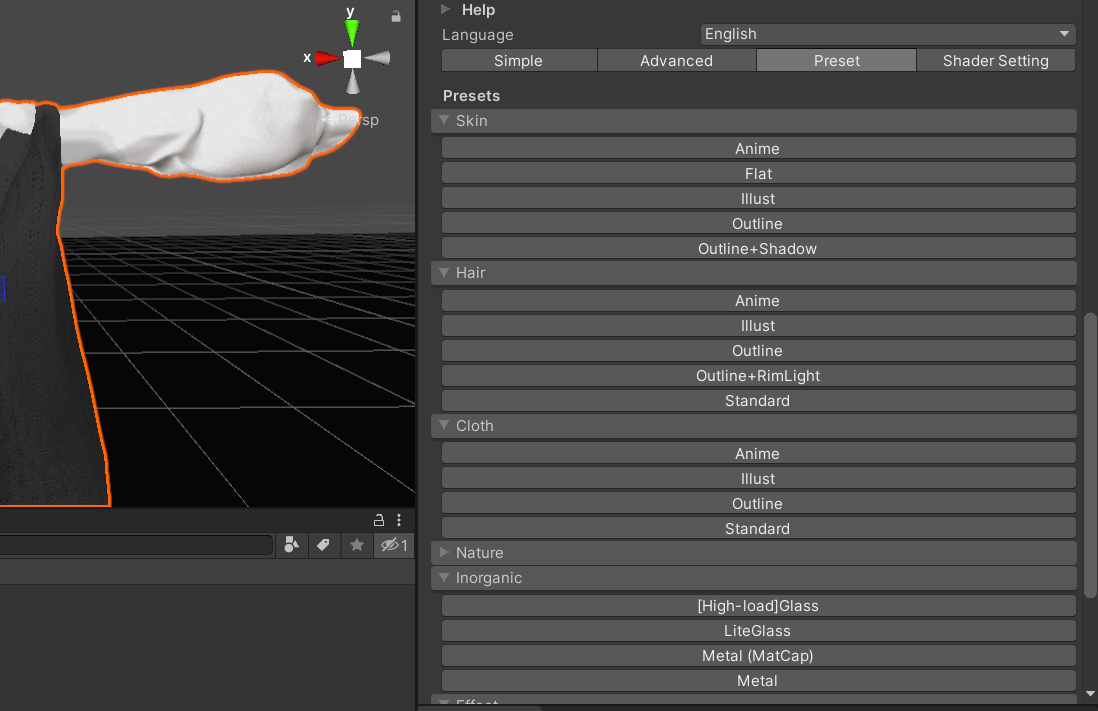
            You should find the settings here
            (Give me a sec to add a snipshot)
            Clicking the rendering mode box there should be some options.

            Capture t.PNG
            Then for here on the preset tab you can choose some presets by clicking the arrow to show a list which I've already shown here in this photo. (Forgot to click nature) but that has a preset of the fur option then if you go to the advanced tab and scroll down you should see a section called fur and you can edit it from there if you don't like the default preset on the mesh, you're putting the fur on.
            Capture l.PNG

            BIGMB X 2 Replies Last reply
            1
            • ? A Former User

              You should find the settings here
              (Give me a sec to add a snipshot)
              Clicking the rendering mode box there should be some options.
              Capture t.PNG
              Then for here on the preset tab you can choose some presets by clicking the arrow to show a list which I've already shown here in this photo. (Forgot to click nature) but that has a preset of the fur option then if you go to the advanced tab and scroll down you should see a section called fur and you can edit it from there if you don't like the default preset on the mesh, you're putting the fur on.

              Capture l.PNG

              BIGMB
              BIGMB
              BIGM
              wrote on last edited by
              #6

              @Matsuda i didn't know u can do that Thank you for the help

              ? 1 Reply Last reply
              0
              • BIGMB BIGM

                @Matsuda i didn't know u can do that Thank you for the help

                ?
                ?
                A Former User
                wrote on last edited by
                #7

                @BIGM_ No problem! I'm glad I could help!

                1 Reply Last reply
                0
                • ? A Former User

                  You should find the settings here
                  (Give me a sec to add a snipshot)
                  Clicking the rendering mode box there should be some options.
                  Capture t.PNG
                  Then for here on the preset tab you can choose some presets by clicking the arrow to show a list which I've already shown here in this photo. (Forgot to click nature) but that has a preset of the fur option then if you go to the advanced tab and scroll down you should see a section called fur and you can edit it from there if you don't like the default preset on the mesh, you're putting the fur on.
                  Capture l.PNG

                  X
                  X
                  xrbw
                  wrote on last edited by
                  #8

                  @Matsuda how to get it cutout with an alpha map?

                  1 Reply Last reply
                  0

                  Hello! It looks like you're interested in this conversation, but you don't have an account yet.

                  Getting fed up of having to scroll through the same posts each visit? When you register for an account, you'll always come back to exactly where you were before, and choose to be notified of new replies (either via email, or push notification). You'll also be able to save bookmarks and upvote posts to show your appreciation to other community members.

                  With your input, this post could be even better 💗

                  Register Login
                  Reply
                  • Reply as topic
                  Log in to reply
                  • Oldest to Newest
                  • Newest to Oldest
                  • Most Votes


                  • Login

                  • Login or register to search.
                  • First post
                    Last post
                  0
                  • Categories
                  • Recent
                  • Tags
                  • Popular