
VRCW Recovery Tool. Get Fully Working Unity Projects Out of VRCW Files
-
VRCW-Recovery
VRCW-Recovery takes the world's
.vrcwfile and rebuilds it as a Unity 2022.3.22f1 project you can open, edit and upload again.It's a single Windows app.
What you get back
- Scenes and prefabs, as a working VRChat Worlds project
- Meshes, textures, materials, audio and animations
- Baked lighting and light probes, so the world looks lit the way it was
- Udon programs, decompiled back into UdonSharp scripts
- Shaders. The app looks for the real source first: in your own shader folders, in packages it finds online, and on public shader download pages. If none of those has it, the shader is decompiled from the world file. As a last resort it uses a stand-in that keeps the material's colors and textures.
- VRChat packages the world was built with, such as shader or prefab packages. A package is added only when the app can confirm the world really used it.
- Older SDK2 worlds: triggers are turned into components that do the same job
Before a run counts as finished, the app opens the project in Unity and checks that it compiles and passes the SDK's checks. If a package breaks the project, the app removes it and builds again.
What can't come back
A world file only holds what the game needs to run the world. Anything that existed only in the creator's Unity project is gone:
- the original script source. Decompiled scripts do the same thing, but names, comments and layout are lost
- source art files such as PSD, BLEND and Shader Graph files. You get the finished textures and meshes instead
- editor-only tools and scripts
- the lighting bake cache. The baked lighting itself is recovered, but changing it means baking again
- anything stored on a server or downloaded at runtime
Getting started
- Install Unity 2022.3.22f1 through Unity Hub. The app finds it; it never downloads Unity for you.
- Open VRCW-Recovery and accept the agreement.
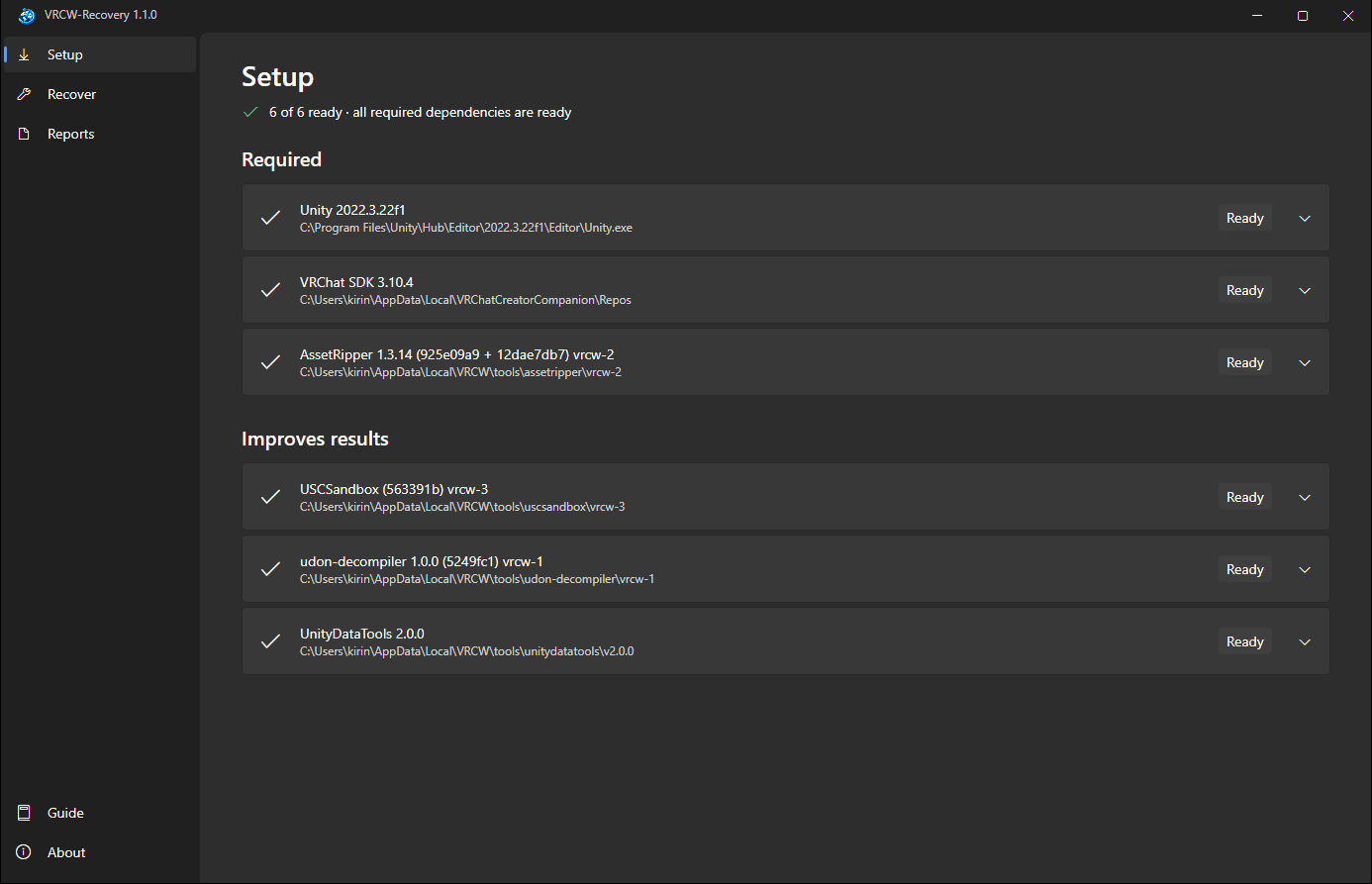
- Setup: click Get everything. It downloads and verifies the VRChat SDK and the recovery tools. If you already have one of them, you can point Setup at your copy instead.
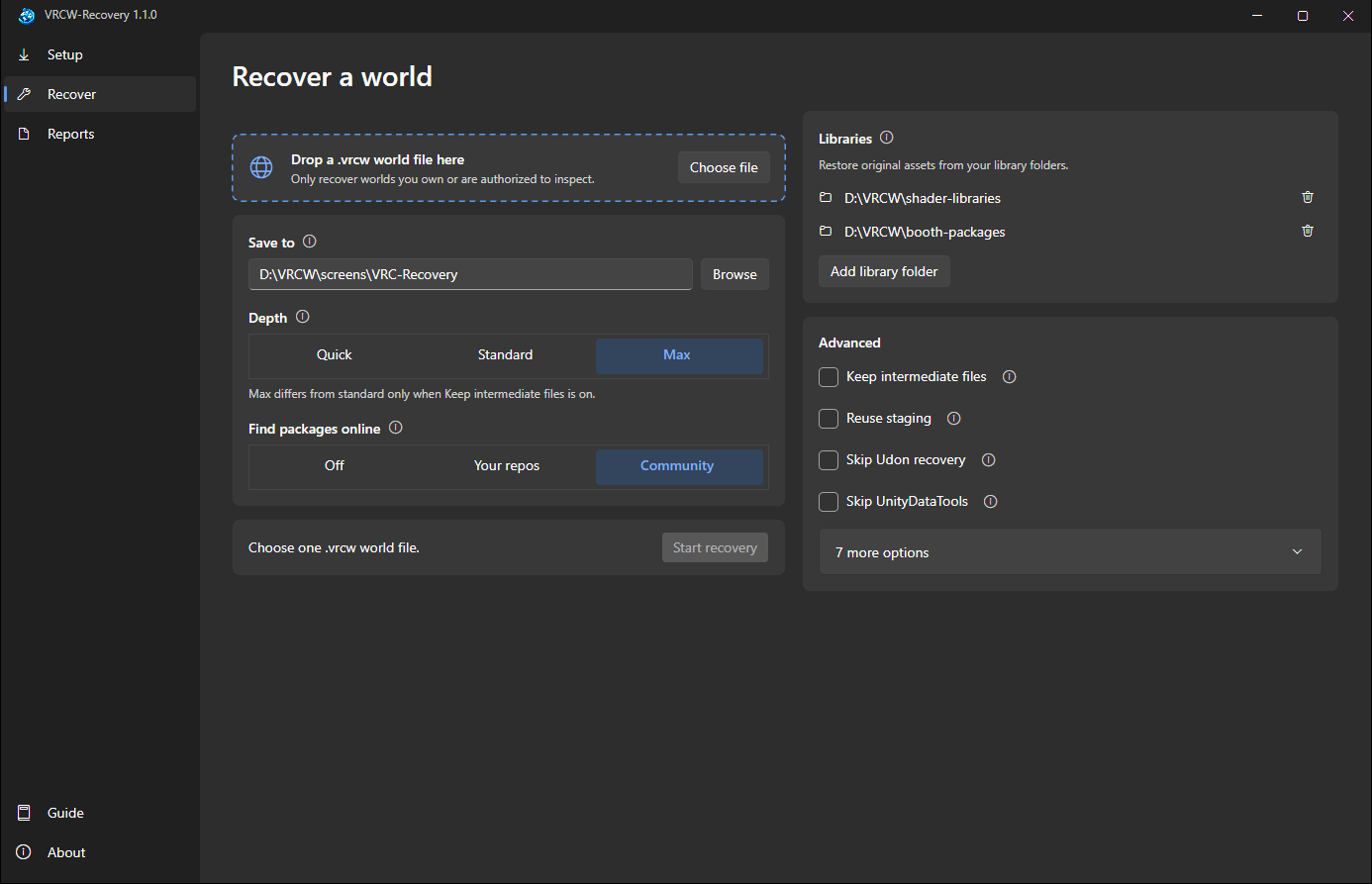
- Recover: drop in your
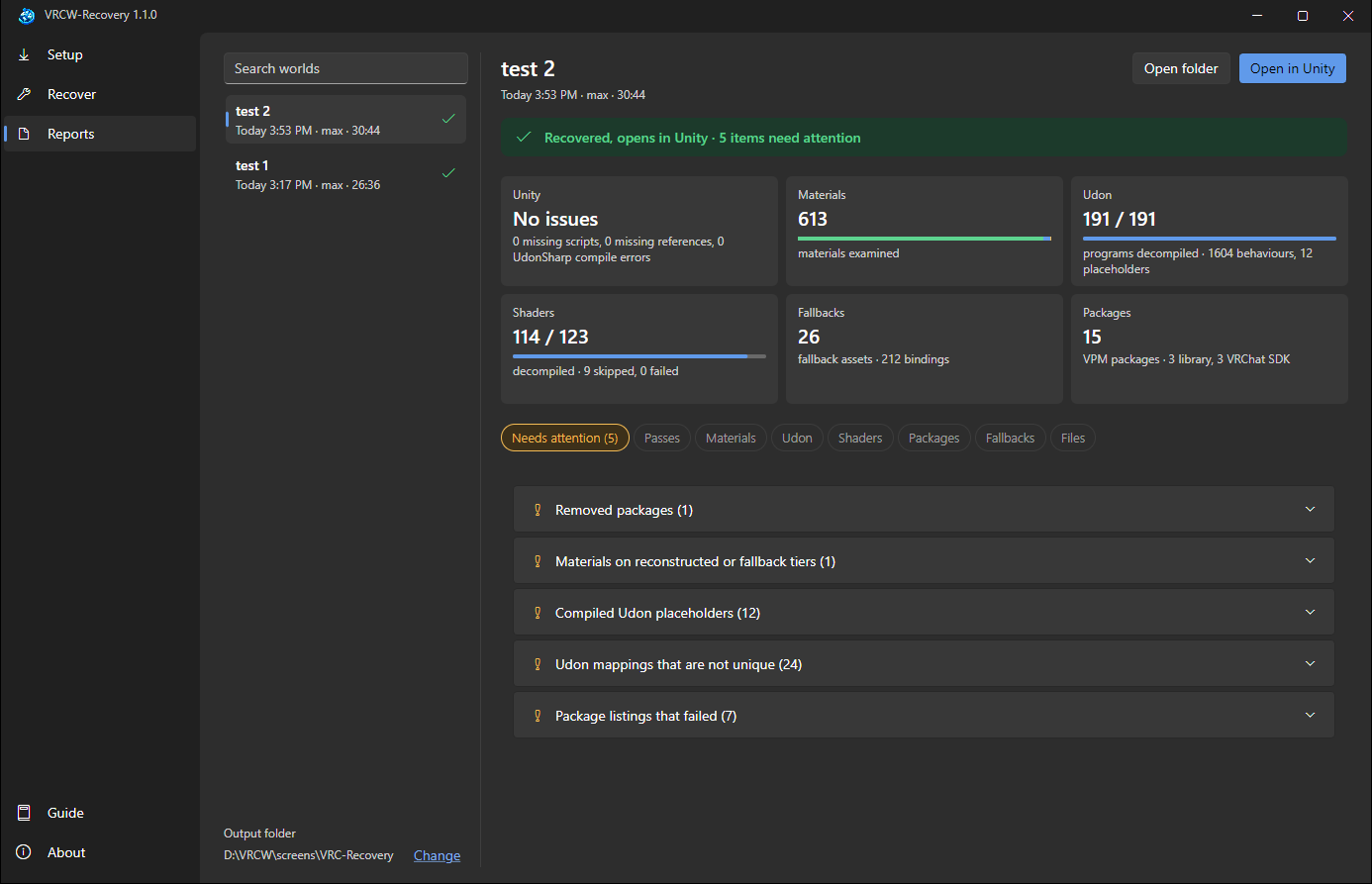
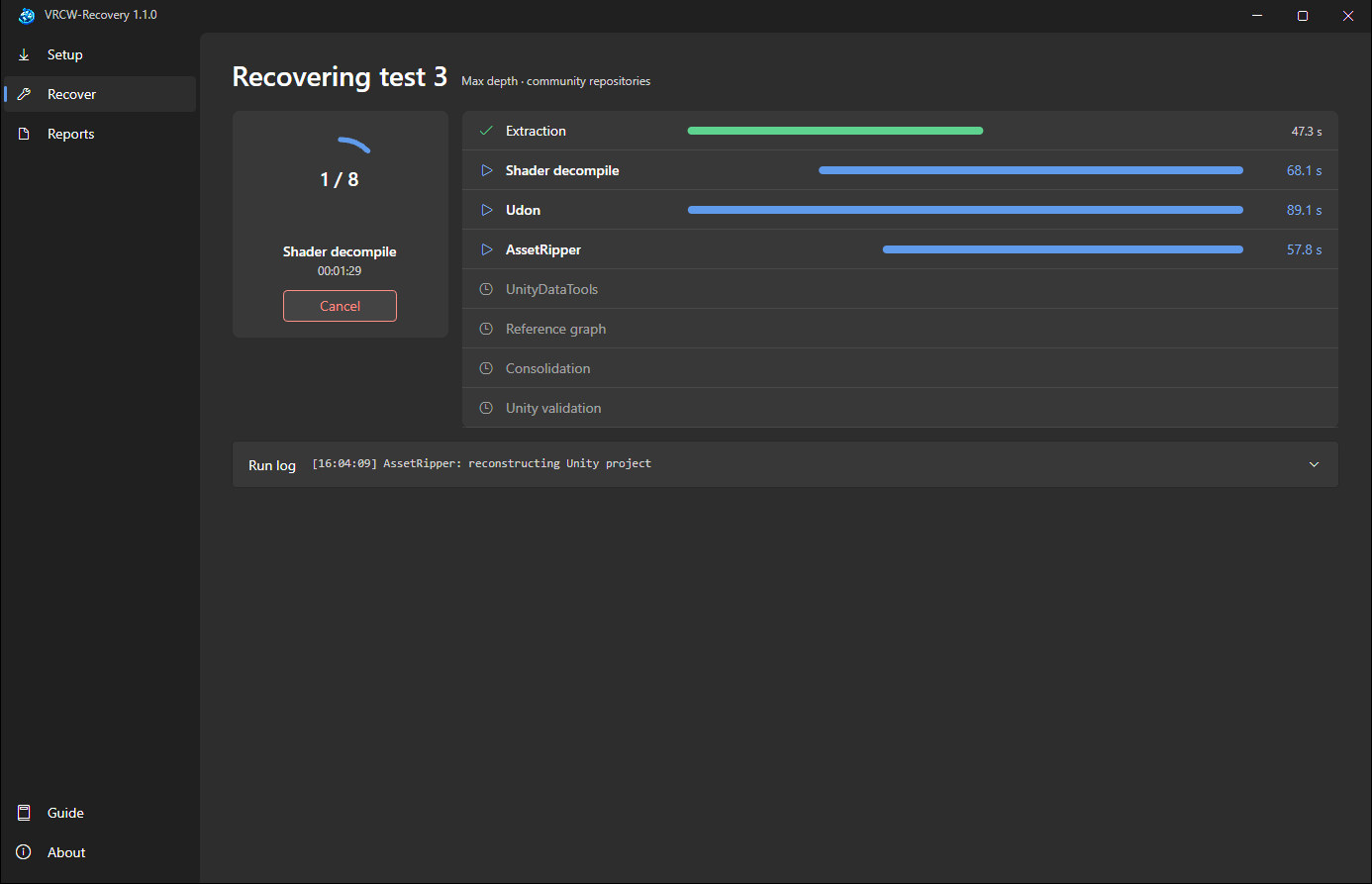
.vrcwfile, choose where to save the project, and click Start. Each step shows its progress live, and you can switch pages while it runs. - Reports: see what was restored and what needs attention. Each material is listed with how close its shader is to the original.
- Impot: point VCC/ALCOM to the output folder and open in unity!
Tip: if the world uses paid shaders or Booth packages you have, put them in one folder and add it under Libraries. The app checks each one against the world and uses only what the world really used, so you get the real shaders instead of rebuilt ones.
Good to know
- You're responsible for what you do with recovered content.
- Read
RECOVERY-AUDIT.mdin the recovered project before you publish anything. It lists what was rebuilt, approximated or left out. - The app doesn't check for updates, and links open only when you click them.
Example Screenshots
I have used it on some popular worlds, screenshots and some recovered project files are below.
Tool for downloading VRCW files. (not made by me)
-
-
-
Updated the tool for 1.1
The links are updated in the main post.More of the world comes back with its real shaders.
-
Shaders that need LTCGI (Mochie, Silent’s Filamented, and others) now compile. Recovery installs LTCGI when an installed shader needs it. Before, these shaders were installed but failed to compile, so their materials fell back to approximations.
-
When two shader packages would write into the same folder, only the better match is installed. Before, both got installed, broke each other, and were removed, so the world got neither. Poiyomi was the case that showed it.
-
In my test worlds, this moved 170 materials onto their real, editable shaders. One world went from 130 approximated materials to none.
Animations that work. Animation curves that only kept a hashed property name are matched back to the real property, such as a color or a blend shape, so those animations play again.
Fewer slow retries. Worlds using packages like YamaPlayer used to fail their first Unity pass, because of an UdonSharp issue, and only passed on a second try. They now pass the first time, which saves about 20 minutes on those worlds.
Better shader decompiling. The bundled shader decompiler handles shaders it used to crash on, including post-processing, particle and line shaders.
Other
- The recovery audit shows the correct shader counts.
- Reports name shaders that failed to compile, and packages skipped because they overlap.
-
-
App updated to 1.2 version.
Links are updated in the main post.- Added Japanese, Simplified Chinese and Traditional Chinese language options.
These are machine translated do not expect perfection. Logs and reports are still in English.
Recovery improvements:
- Packages that need each other now get versions that fit together.
- Two copies of the same Udon script on one object now each keep their settings.
- More decompiled shaders now compile.
Fixes:
- Fewer runs fail because a log file is in use.
More on the chages can be found here if you are insterested.
- Added Japanese, Simplified Chinese and Traditional Chinese language options.
-
This is fantastic, it's working great! The decompiled worlds are surprisingly functional. Functionality wise, i only noticed some shader issues with some awkward shaders. Otherwise it's perfect.
One UI issue only, i'm on Windows 10 and the UI's background is transparent for some reason. Everything else is working with no problems.Many thanks for this!
-
This is fantastic, it's working great! The decompiled worlds are surprisingly functional. Functionality wise, i only noticed some shader issues with some awkward shaders. Otherwise it's perfect.
One UI issue only, i'm on Windows 10 and the UI's background is transparent for some reason. Everything else is working with no problems.Many thanks for this!
@trashpanda I am glad you like it. Some shader + material combinations are really hard to get exactly like the original unfortunately. I just try to make that subset of shaders smaller with each update.
Regarding the transparent background; before I only had tested it on win11 hence never knew the error, this will be fixed on 1.4.0 along with the linux version.
-
@trashpanda I am glad you like it. Some shader + material combinations are really hard to get exactly like the original unfortunately. I just try to make that subset of shaders smaller with each update.
Regarding the transparent background; before I only had tested it on win11 hence never knew the error, this will be fixed on 1.4.0 along with the linux version.
-
@kirin35 1.3 was a big improvement i am now a member paying for your coffee lol one thing i am noticing with some shaders is in vr the left eye looks great but the right eye has some shaders follow your line of sight and stretch and stuff
@DreamDeku ii can help with this sir/ma'am. that problem is most likely a broken video screen shader. (proTV, Vidzi, etc) the way to fix this is to delete the video screen shader and apply the real one.
-
-
like for instance one was a lava lamp shader, i had to find the real one buy it and replace the shader then it worked, but it was so close to working with this tool it was just the left eye that was wonky
@DreamDeku a lava lamp shader? interesting. from my experience it was 99% always the TV shader (i've been manually repairing worlds way before this program). interesting, thanks for letting us know!
-
@kirin35 1.3 was a big improvement i am now a member paying for your coffee lol one thing i am noticing with some shaders is in vr the left eye looks great but the right eye has some shaders follow your line of sight and stretch and stuff
@kirin35 1.3 was a big improvement i am now a member paying for your coffee lol one thing i am noticing with some shaders is in vr the left eye looks great but the right eye has some shaders follow your line of sight and stretch and stuff
This was an issue with how the shader decompiler handled the matrix arrays. I have now written my own shader decompiler for this program, and this issue is fixed on it. So the next version (1.4) should fix the issue you are describing.
-
@DreamDeku ii can help with this sir/ma'am. that problem is most likely a broken video screen shader. (proTV, Vidzi, etc) the way to fix this is to delete the video screen shader and apply the real one.
@DreamDeku ii can help with this sir/ma'am. that problem is most likely a broken video screen shader. (proTV, Vidzi, etc) the way to fix this is to delete the video screen shader and apply the real one.
The program actually auto applies the real shaders, if it has access to the real shader package. So ProTV almost always look right.
-
Thank you so much for this amazing tool!
I'm running into an issue during the consolidation process. After 1800 seconds (30 minutes), it fails with the following error:
consolidation: failed consolidate timed out after 1800sIs the 1800-second timeout an intentional limit, or does this indicate that something is going wrong? If this isn't expected behavior, is there anything I can do to fix it?

-
@DreamDeku ii can help with this sir/ma'am. that problem is most likely a broken video screen shader. (proTV, Vidzi, etc) the way to fix this is to delete the video screen shader and apply the real one.
The program actually auto applies the real shaders, if it has access to the real shader package. So ProTV almost always look right.
-
Thank you so much for this amazing tool!
I'm running into an issue during the consolidation process. After 1800 seconds (30 minutes), it fails with the following error:
consolidation: failed consolidate timed out after 1800sIs the 1800-second timeout an intentional limit, or does this indicate that something is going wrong? If this isn't expected behavior, is there anything I can do to fix it?
Thank you so much for this amazing tool!
I'm running into an issue during the consolidation process. After 1800 seconds (30 minutes), it fails with the following error:
consolidation: failed consolidate timed out after 1800sIs the 1800-second timeout an intentional limit, or does this indicate that something is going wrong? If this isn't expected behavior, is there anything I can do to fix it?
On the recovery page, if you click on Advanced there is an option to specify the Unity time out limit, try putting a large number there(it is in minutes do like 120, that should be fine.). On big worlds; basically anything above 1GB .vrcw file, it is the expected behaviour.
-
-
-
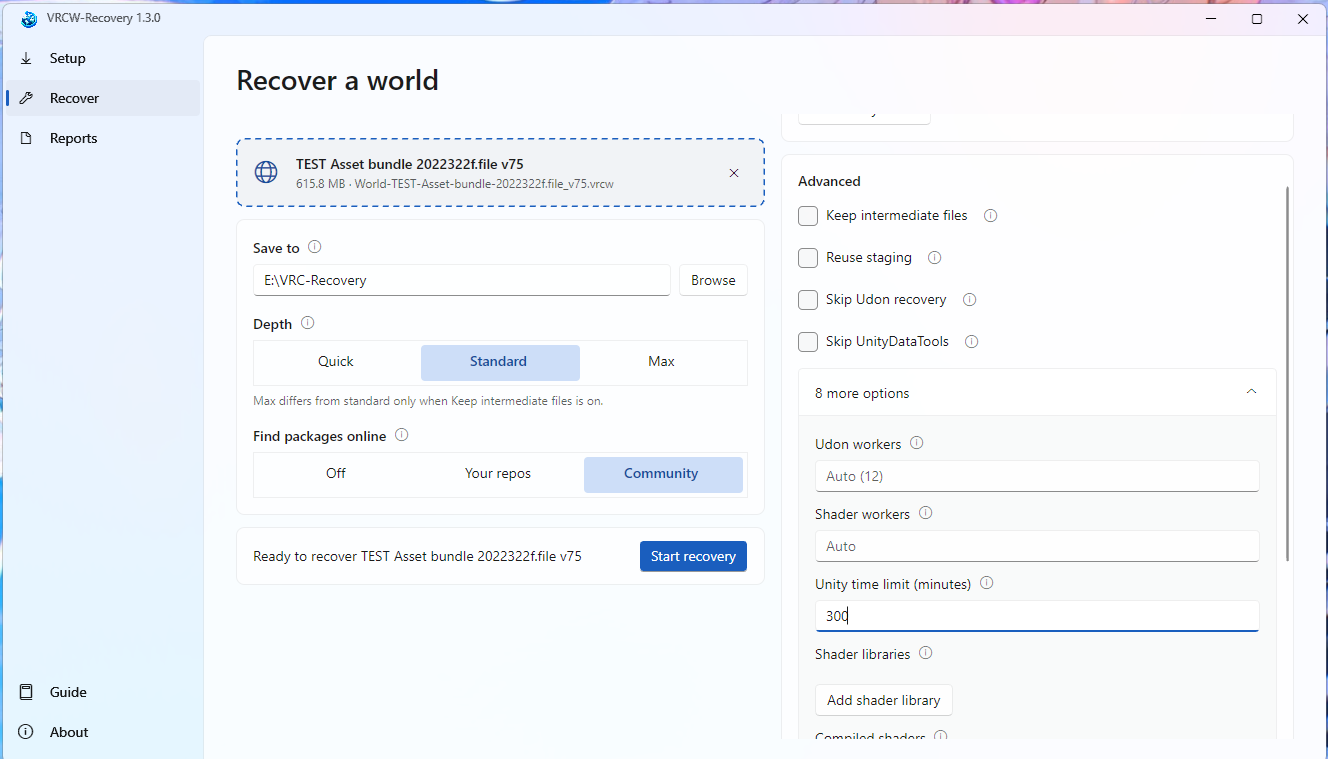
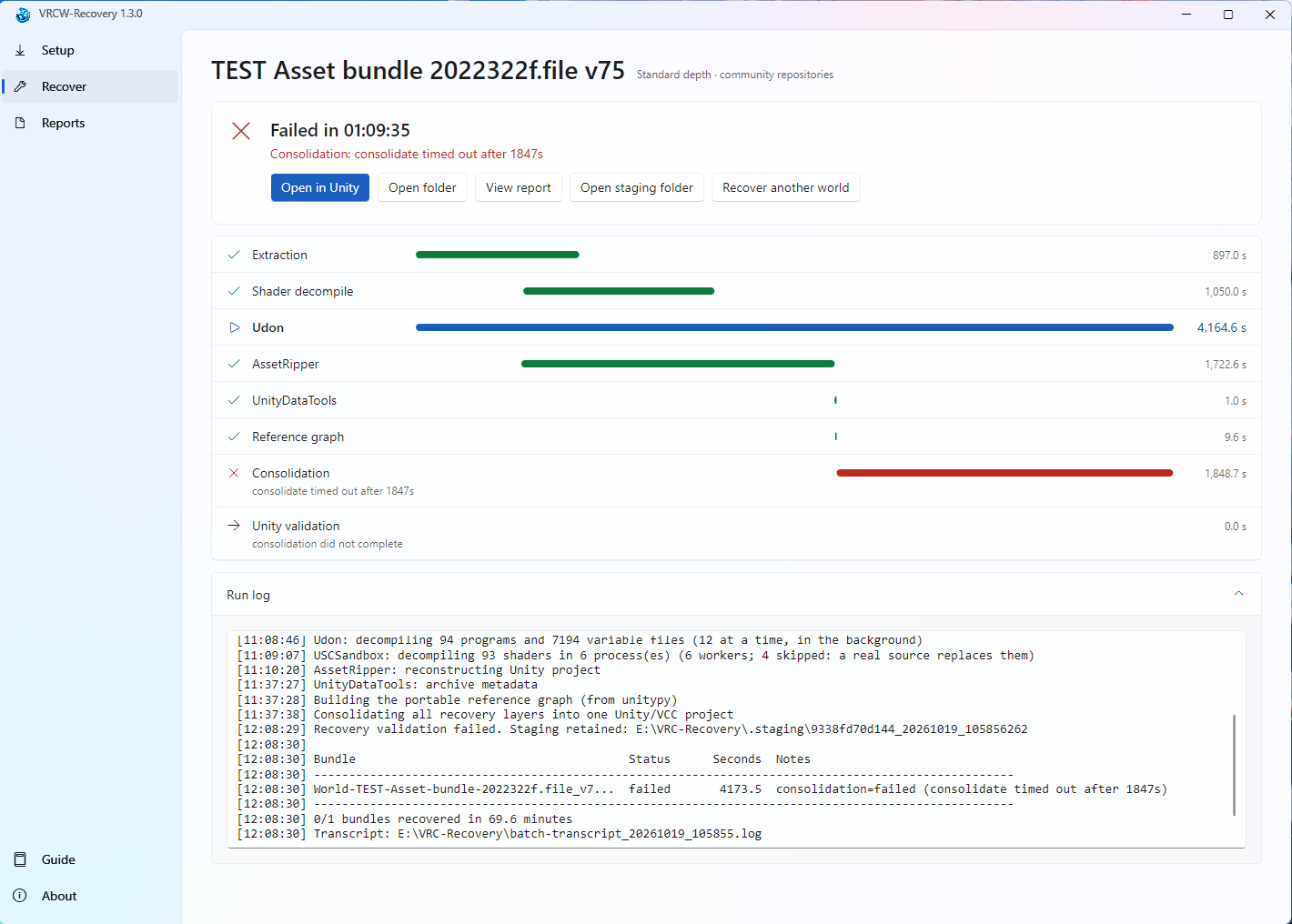
Is this what you meant...?
I tried setting the time limit to 300 minutes, but unfortunately, it still didn't work. Could you please help me out once again?🥹
Is this what you meant...?
I tried setting the time limit to 300 minutes, but unfortunately, it still didn't work. Could you please help me out once again?🥹Open a terminal where you have the .exe;
Type this command:Start-Process .\VRCW-Recovery-1.3.0.exe -ArgumentList 'recover','"C:\path\to\World-TEST-Asset-bundle-2022322f.file_v75.vrcw"','--output-root','"E:\VRC-Recovery"','--depth','standard','--reuse-staging','--tool-timeout-seconds','0','--unity-timeout-seconds','18000' -Wait -NoNewWindowChange "C:\path\to\World-TEST-Asset-bundle-2022322f.file_v75.vrcw" with your actual path to .vrcw, if u deleted the .staging folder remove --reuse-staging flag.
-
@kirin35 Do you have the version for VRCA?







Hello! It looks like you're interested in this conversation, but you don't have an account yet.
Getting fed up of having to scroll through the same posts each visit? When you register for an account, you'll always come back to exactly where you were before, and choose to be notified of new replies (either via email, or push notification). You'll also be able to save bookmarks and upvote posts to show your appreciation to other community members.
With your input, this post could be even better 💗
Register Login