
LF: Viseme Override Tool
-
Does anyone know the name of the booth tool that overrides the blendshapes so that your visemes are default when speaking?
I want to give moe a cat face :3 but her mouth looks odd when open as you can see by the 2nd picture!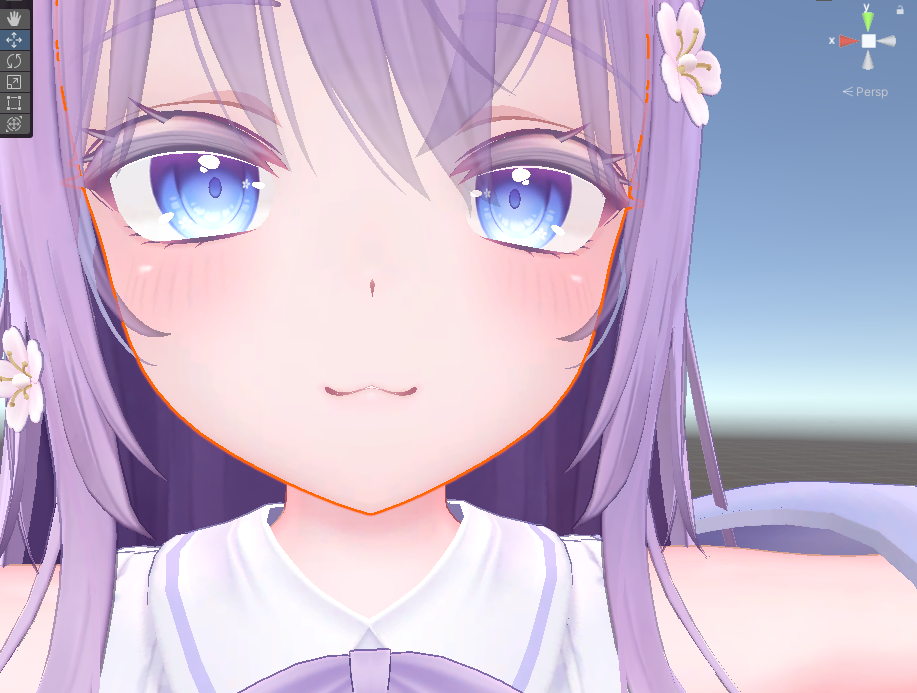
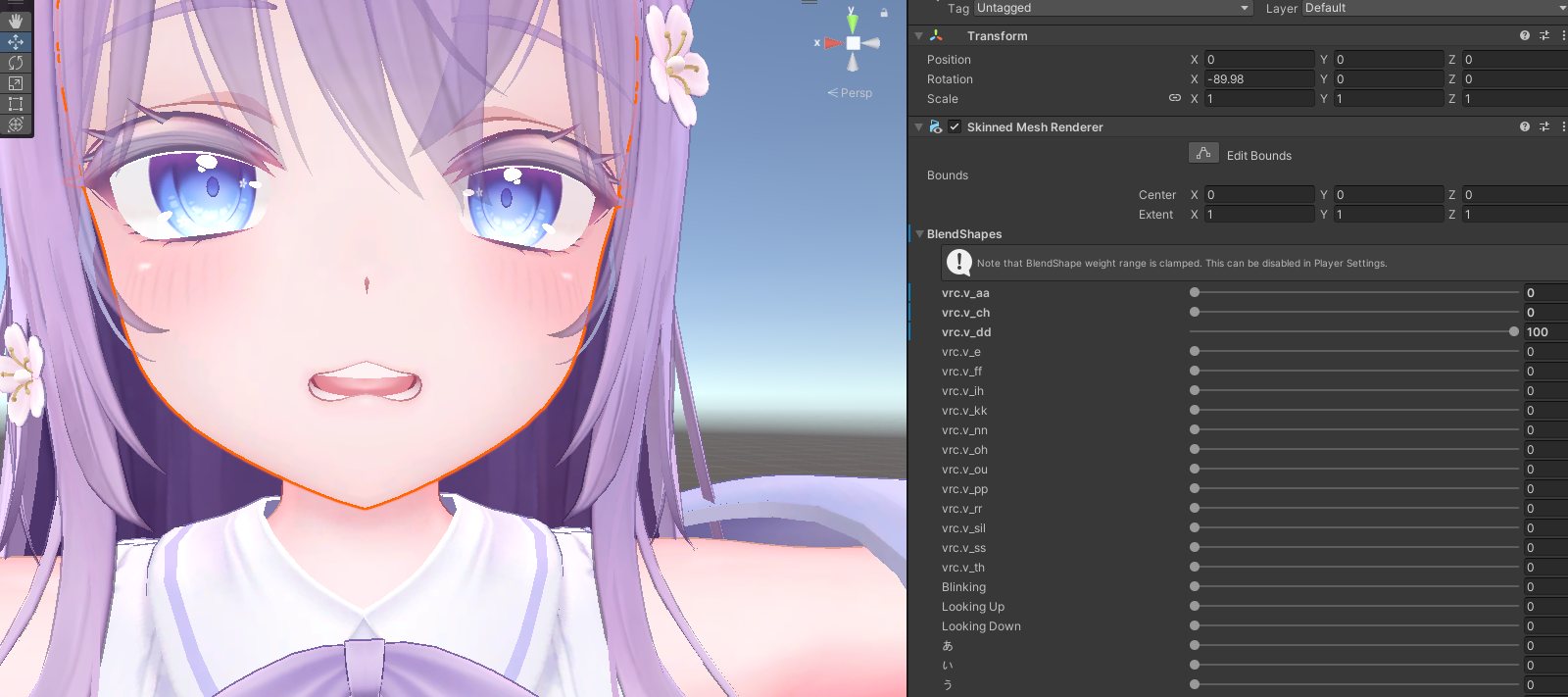
Thank you very much if you can help me

-
You can easily do this yourself by using VRChat's Built-In Animator Parameters.
Start off by making an animation where Moe does not have the cat face :3 using a single animation frame.
Find and edit your FX Animator Controller to have the "Viseme" Int parameter, if it doesn't have it already.
To do this, click your FX Animator Controller, navigate to the Animator window, and click the Parameters tab, then click the + symbol next to the 'Name' textbox and select Int. Find and rename that New Int by double-clicking it to "Viseme", case-sensitive and without the quotes
Add a new Animator Layer to your FX Animator Controller and make sure its weight is set to 1 by clicking the cog icon to the right of the name and dragging the Weight slider to 1.
Select that Animator Layer and add a Default State by right-clicking the empty field to the right of the Animator Layers and selecting Create State > Empty. Rename this State to something like Default if you want.
Drag and drop the animation you made somewhere into the empty field with the Default State.
Right click the Default State and select Make Transition, then drag it to the Animation State that you just added in. Do the same in reverse, from your Animation State to the default State.
Click the arrow connecting your Default State to your Animation State, and add a Condition. Set the Condition to Viseme NotEqual 0—This activates when you are talking—and do the same to the other Transition, except set Viseme as Equal 0, this will deactivate it.
Finally, select both Transitions, expand the Settings dropdown by clicking the arrow next to Settings, and uncheck Has Exit Time, and change Transition Duration (s) to 0.
Test it out, and if you have any questions or need any more help, feel free to ask.

Hello! It looks like you're interested in this conversation, but you don't have an account yet.
Getting fed up of having to scroll through the same posts each visit? When you register for an account, you'll always come back to exactly where you were before, and choose to be notified of new replies (either via email, or push notification). You'll also be able to save bookmarks and upvote posts to show your appreciation to other community members.
With your input, this post could be even better 💗
Register Login