
【シャロ専用】キラキラアイテクスチャ (Chalo sparkling eye texture)
-
Thanks so much!!

-
if you dont already have a photo editing software (photoshop, gimp, paint. net) i suggest you get paint. net due to how easy it is to learn and simple it is to use :3
if you cant install a photo editing software, you can use an online one. its a different process though, so if you or anyone needs that covered also just shoot me a reply

i wrote this for chalo but the process can be used with almost any booth avatar

please let me know if you need anything explained more in-depth or you got any sort of error!
- import chalo's unity package file into unity (Assets > Import package > Custom package...)

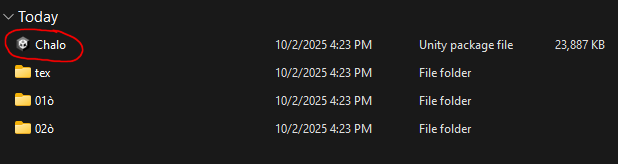
- after the avatar is successfully imported, a folder should appear in your project window, containing all of chalo's textures, materials, meshes, etc.

- in chalo's folders, look for the "Chalo" folder. there will be three avatar variants.

i will be using the Chalo2 variant. select then drag and drop the avatar into your project hierarchy.
https://www.youtube.com/watch?v=bMmkBt6aylY
- now in chalo's folders, look for the "textmat" folder. inside there will be 3 folders. each folder has a different fur color style.
(for example, the first folder has chalo's "default" textures and materials. however, if you want chalo's fur to be darker instead, you would use the second folder's textures and materials.)
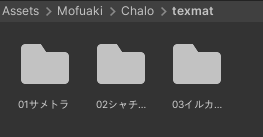
- in whichever folder you decide to use, find the image texture Body, Body2, or Body3
(the number corresponds to the folder. e.g. the first folder has Body, the second folder has Body2, the third folder has Body3)


-
select the image and right click it. from the popup, select "Show in Explorer"
-
your file explorer should open with the body texture selected. right click the image in your file explorer, choose "open with", then choose your photo editor (i'm using paint. net, so i'll select paint. net)

if you're not using windows 11, it may look a little different. for windows 10 or below, it will look like this:
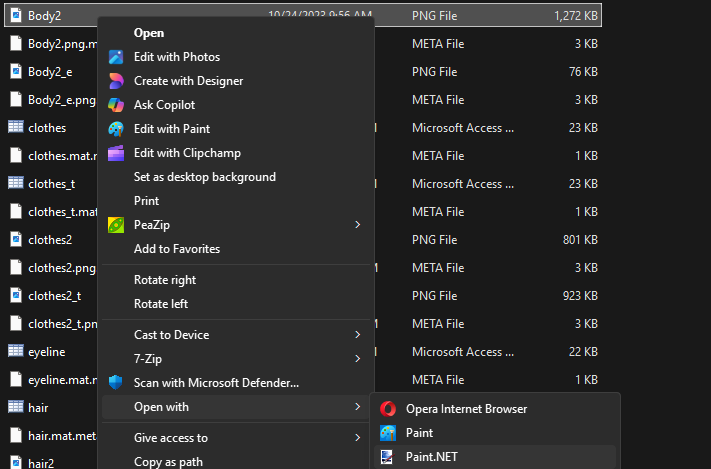
the same applies, though. right click image and choose "open with > (your photo editing software)"
- in paint .net (or whatever photo editing software you're using), follow the steps in the short video i provided below:
https://www.youtube.com/watch?v=y7u1Mv-_6LE
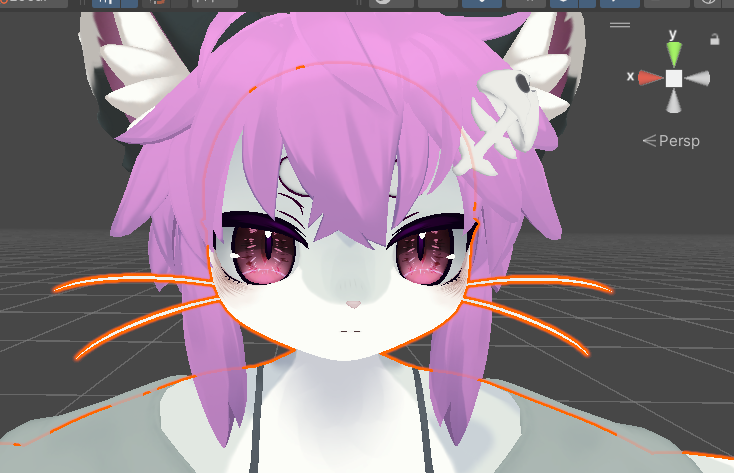
now if you go back to unity, your chalo avatar should look like this! great job!!! :333
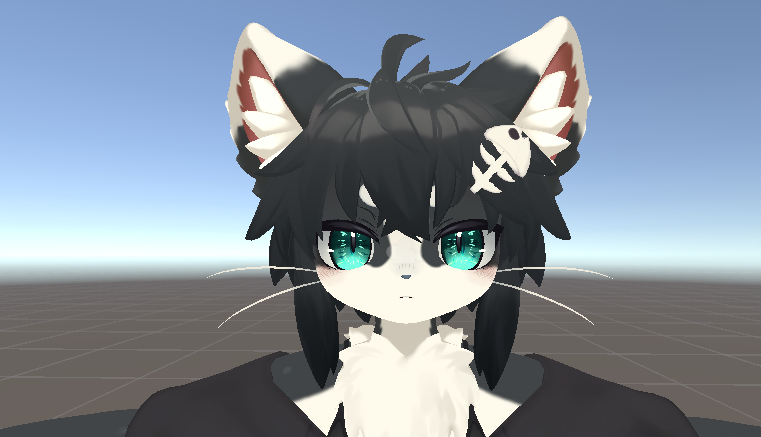
i have way too much time on my hands... :')
-
thank you!!!, i am so sorry to come back here to inform you we were able to do it before you answered us but thank you for teaching ;;;;





Hello! It looks like you're interested in this conversation, but you don't have an account yet.
Getting fed up of having to scroll through the same posts each visit? When you register for an account, you'll always come back to exactly where you were before, and choose to be notified of new replies (either via email, or push notification). You'll also be able to save bookmarks and upvote posts to show your appreciation to other community members.
With your input, this post could be even better 💗
Register Login